
Simplify transitions for teachers moving between schools.
When a school transfer occurs due to personnel changes, ClassSync provides a secure file transfer feature that seamlessly migrates all files stored in OneDrive, Teams Class Materials, and Google Drive from the previous school to the new school’s OneDrive — without temporarily storing any data on external cloud services.
Drive File Transfers Overview
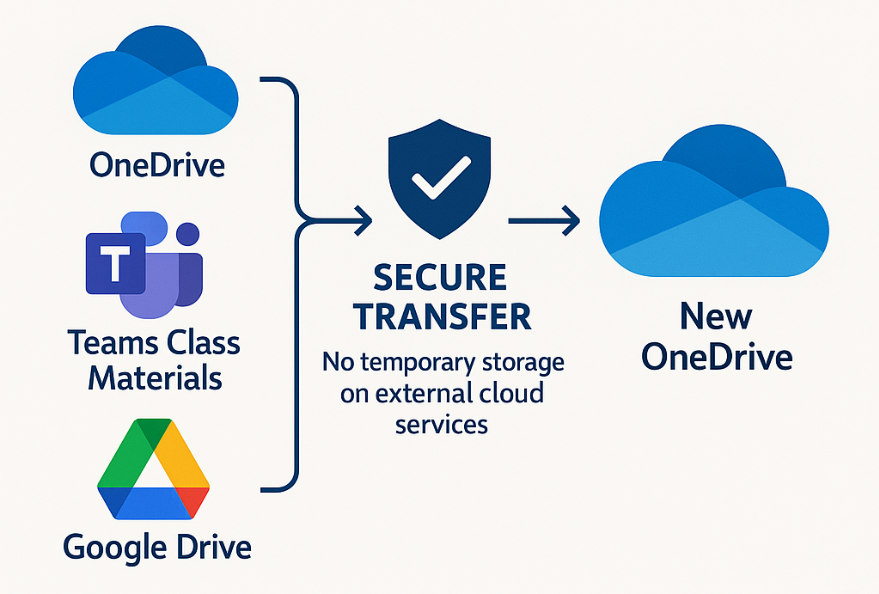
| Source | Destination | Contents Migrated |
|---|---|---|
| OneDrive (Old School) | OneDrive (New School) | Personal files, teaching materials |
| Teams Class Materials | OneDrive (New School) | Assignments, shared resources |
| Google Drive | OneDrive (New School) | Docs, Sheets, Slides, folders |
1-1. Select OneDrive to OneDrive
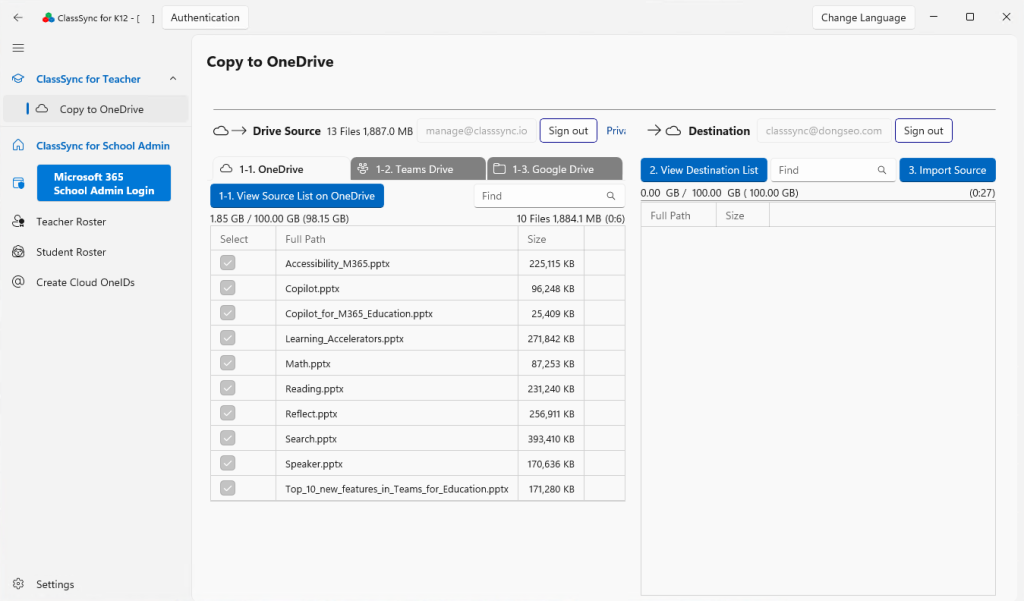
1-2. Select Teams Drive to OneDrive
💡 To view files stored in a team owned by the user, administrator approval is required.
When a tenant administrator logs into the drive source, an approval page will be displayed. Once the approval is completed, the user will be able to view and copy files stored in the team they own.

1-3. Select Google Drive to OneDrive

2. View Destination List
Compare the source list and the destination list, and if the file name and file size are the same, deselect the source.
3. Import Source

⚠️ Unsupported Files for [Copy to OneDrive]
The following Google-native formats cannot be transferred directly to OneDrive as they are cloud-only objects.
- Apps Script: Manual code export is required via the editor.
- Forms: Only the linked response spreadsheet can be transferred.