ClassSync now supports multiple languages, including Supported Languages!
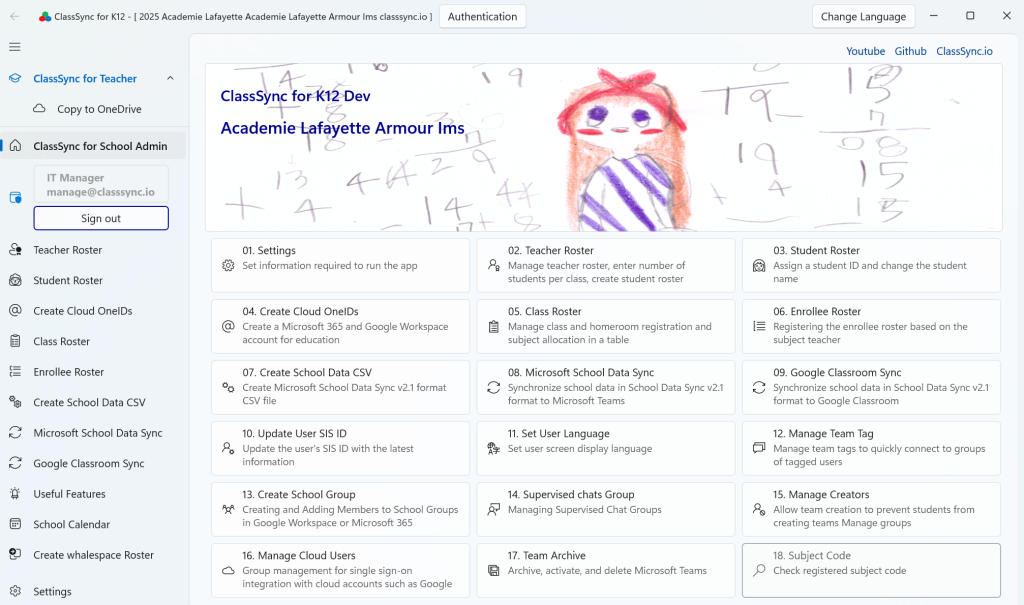
ClassSync is a solution that integrates and manages Google Workspace for Education and Microsoft 365. Based on teacher and student rosters, it automatically creates class-based groups in Google Workspace and Microsoft 365, allowing easy group selection and user addition in Google Classroom and Microsoft Teams. It also supports integration with https://sds.edu.cloud.microsoft by providing functionality to generate School Data Sync CSV v2.1 files. The app includes a Google Classroom Sync feature that automates the creation of Classroom classes. Managing educational data has never been easier.
Our platform is designed to cater to the needs of users with varying Supported Languages, enhancing accessibility and user experience.
Copy OneDrive and Google Drive Files to Another OneDrive Account
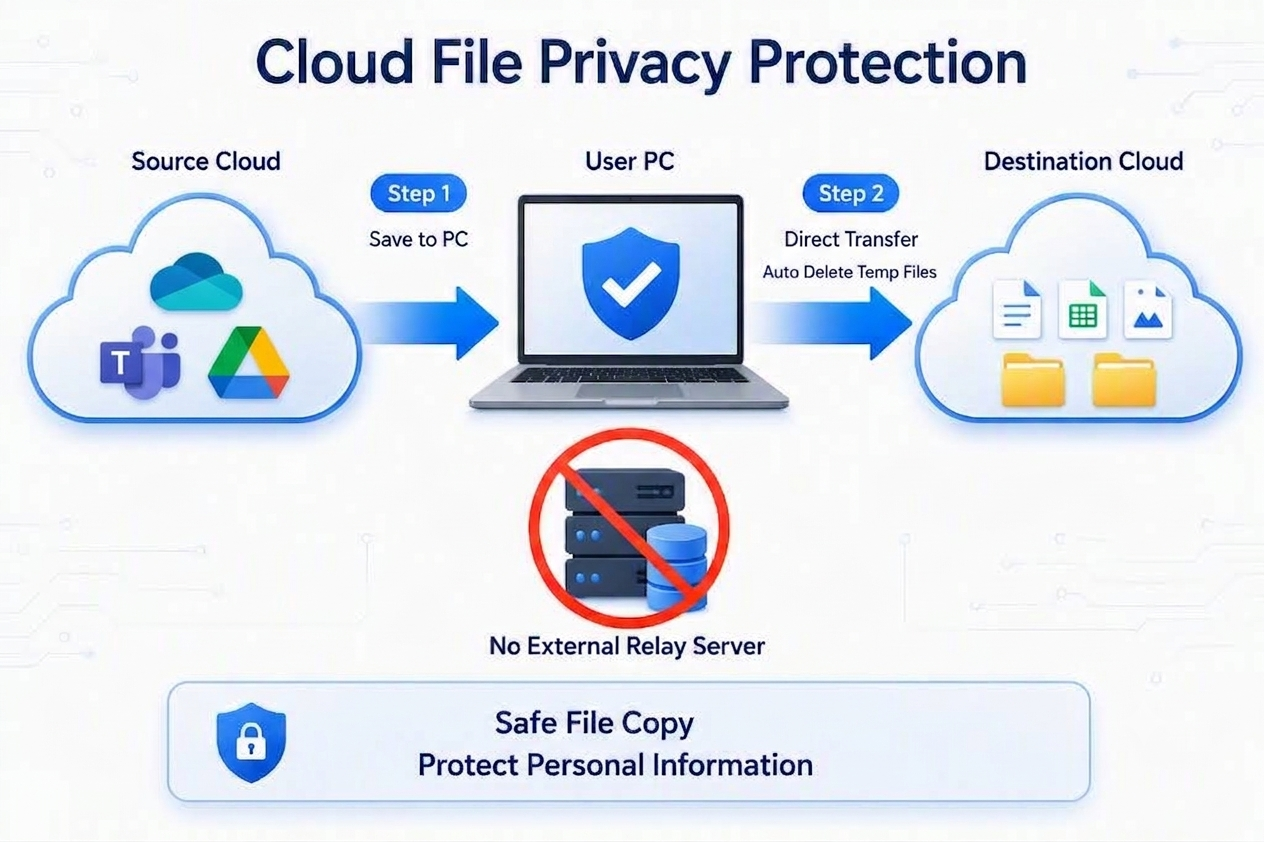
ClassSync Mover supports cross-tenant OneDrive migration by copying selected files and folders between Microsoft 365 school accounts. It also supports Google Drive to OneDrive and Microsoft Teams to OneDrive file transfers. Original files remain in the source account. Transfer data is processed on the user’s local PC and is not stored on ClassSync or third-party external servers.
Unlike a full Microsoft 365 tenant migration, ClassSync Mover does not move the entire OneDrive account, user identity, permissions, or tenant configuration. It copies selected files and folders to the destination OneDrive while keeping the original content in the source account.
Cross-Tenant OneDrive and Cloud File Transfer Overview
Supported Cross-Tenant OneDrive Migration and Cloud Transfer Sources
ClassSync Mover supports cross-tenant OneDrive migration by copying selected files between Microsoft 365 school accounts. It also copies selected files from Microsoft Teams or Google Drive to the destination OneDrive.
Source
Destination
Transfer Type
Content Copied
OneDrive, Previous School Account
OneDrive, New School Account
Cross-Tenant OneDrive File Copy
Personal files, teaching materials, and folders
Microsoft Teams Class Materials
OneDrive, New School Account
Teams to OneDrive Transfer
Assignments, class materials, and shared resources
Google Drive
OneDrive, New School Account
Google Drive to OneDrive Transfer
Files, folders, and supported Google Workspace content
How Cross-Tenant OneDrive Migration Works in 3 Steps
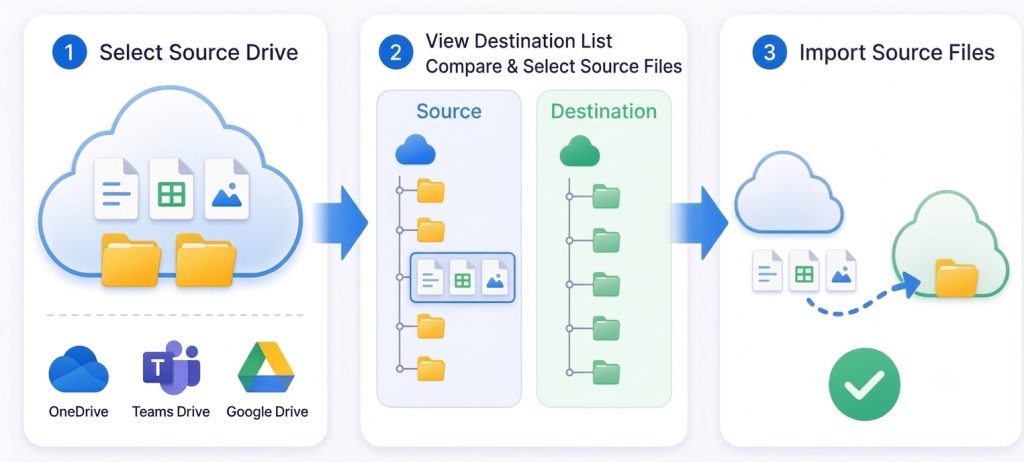
For the simplest and most reliable file copy, follow the recommended three-step process below. Loading the destination list and using Auto Select helps exclude files that have already been copied and makes it easier to resume an interrupted transfer.
Step 1. Select Source Drive
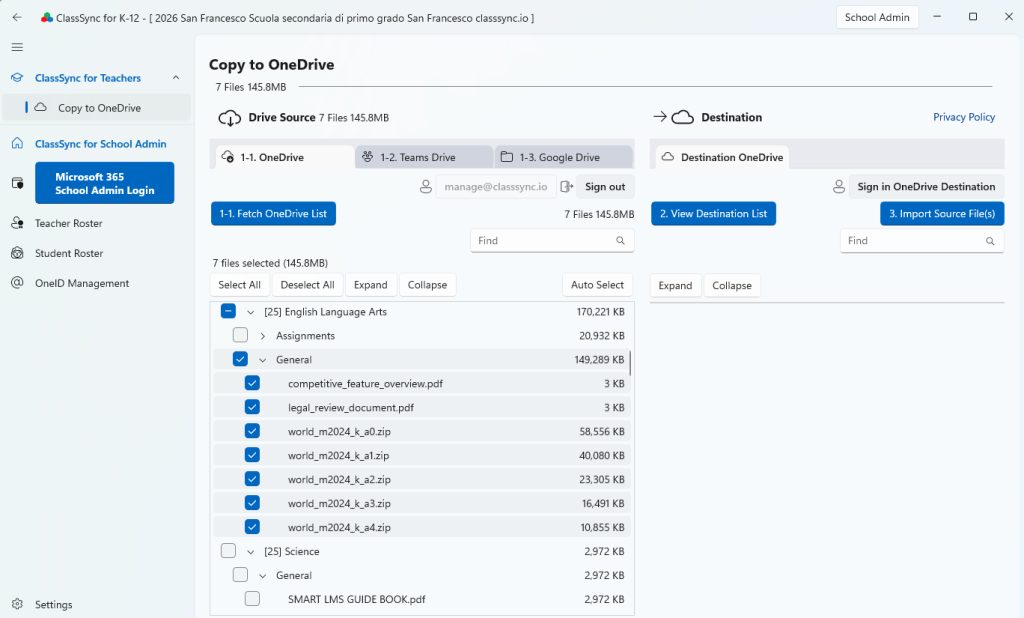
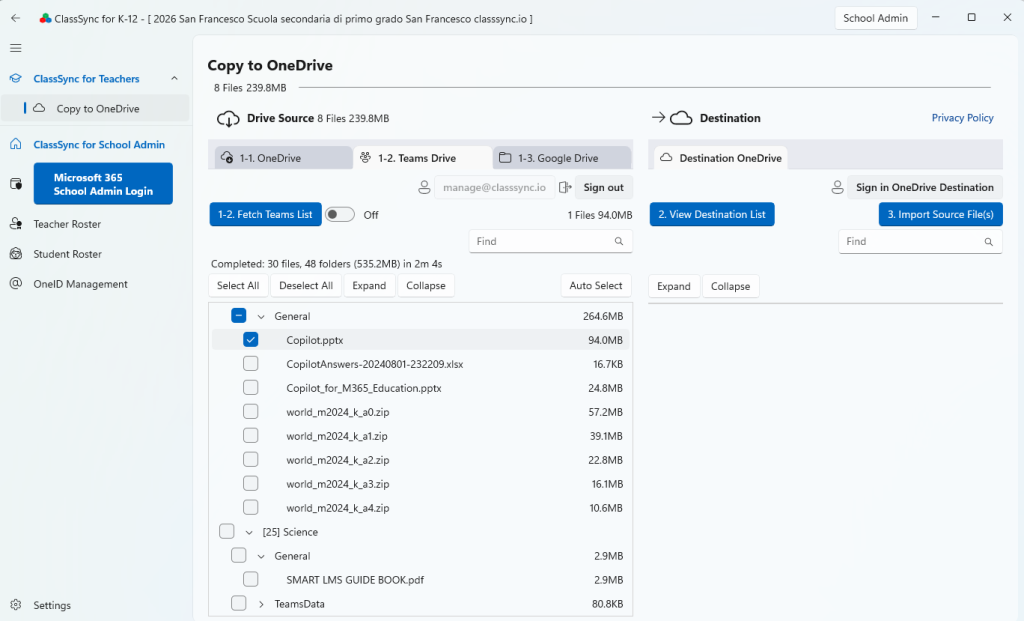
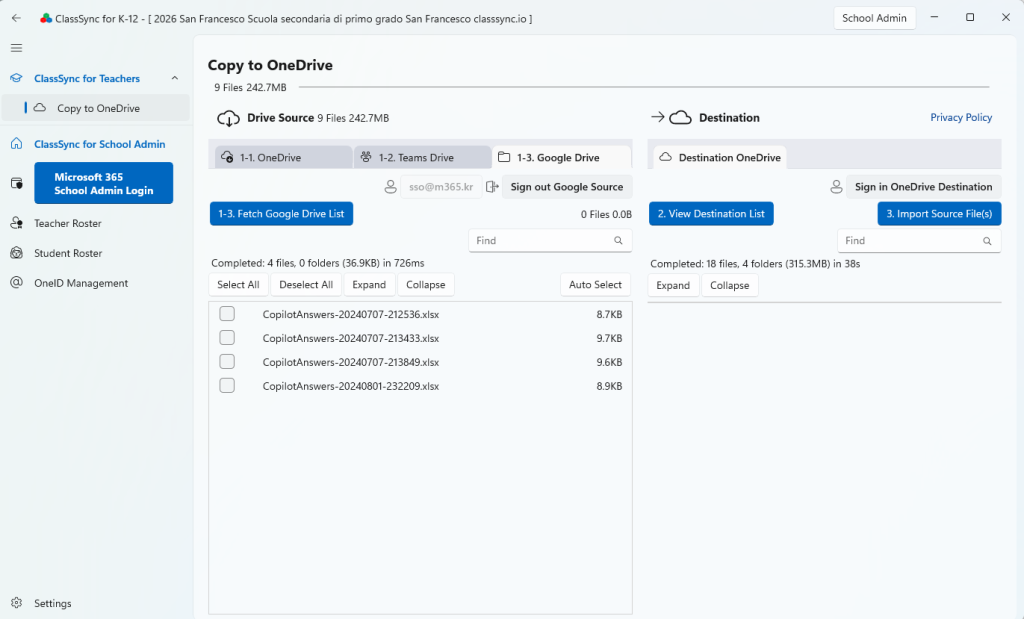
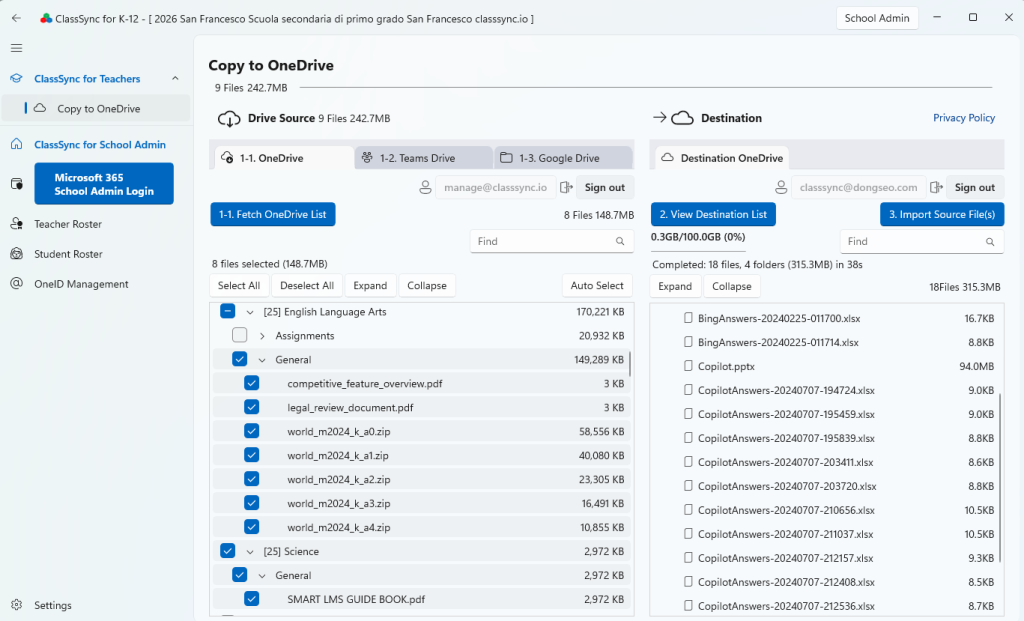
Select OneDrive, Microsoft Teams, or Google Drive as the source, and then fetch the file list. ClassSync Mover signs in when required and displays the available files and folders.
If the Teams file list does not appear, contact your school’s Microsoft 365 administrator. After approval is completed, enable the Teams option and select Fetch Teams List again.
1-3. Google Drive: Fetch Google Drive List
Step 2. View the Destination List and Use Auto Select
Select View Destination List to sign in to the destination OneDrive and display the files and folders already stored there. Then select Auto Select to compare the source and destination lists.
Auto Select compares the file path, file name, and file size in both lists. Files that exist in the source but are not found in the destination are automatically selected.
This feature is especially useful when copying many files or restarting an interrupted transfer. Auto Select helps exclude files that have already been copied and quickly selects the files that still need to be copied.
File size helps Auto Select compare the source and destination lists. When copying begins, an existing destination file is overwritten if its folder path and file name match the selected source file.
Step 3. 3. Import Source File(s)
Select Import Source File(s) to copy the selected files and folders to the destination OneDrive. The operation creates copies in the destination and does not move, delete, or modify the source files.
The Pending count displayed on the transfer screen may include files waiting at different processing stages, so it may not match the number of files in the internal upload queue..
Current Default File Transfer Settings
• Files downloading at the same time: up to 4
• Files waiting to upload: up to 5
• Files uploading at the same time: up to 4
These values are the current defaults and may change in future versions as transfer performance, stability, and resource usage are improved.
⚠️ Unsupported Files for ClassSync Mover(Copy to OneDrive)
The following Google-native formats cannot be transferred directly to OneDrive as they are cloud-only objects.
Notice: Standard Documents, Sheets, and Slides will be converted automatically. However, the items listed below are excluded from the transfer process.
🎬
Google Vids
Video Creation
📝
Google Forms
Survey/Form
🌐
Google Sites
Web Pages
🗺️
My Maps
Custom Maps
⚙️
Apps Script
Script Code
🎨
Jamboard
Legacy Format
🚀
Colab
.ipynb (Transferable)
🔗
Shortcuts
Cloud Links
Apps Script: Manual code export is required via the editor.
Forms: Only the linked response spreadsheet can be transferred.
🎯 Common Use Cases
School Transfers: Use cross-tenant OneDrive migration to copy selected teaching and learning materials from an existing Microsoft 365 school account to a new OneDrive account.
Account Changes: Copy files from an old Microsoft 365 account to a newly issued school account.
Google Drive to OneDrive: Copy supported files and folders from Google Drive to OneDrive.
Staff Departure or Retirement: Copy selected work files to an approved archive or destination account before access expires.
School Reorganization: Copy selected files when school accounts change because of consolidation or system restructuring.
⚠️ Important Notes & Requirements
Account Sign-in: Sign in to both the source cloud and destination OneDrive before starting the copy.
Destination Storage: Ensure that the destination OneDrive has sufficient available storage.
Local Temporary Storage: Sufficient local storage is required for files currently moving through the transfer pipeline.
Stable Connection: Keep the internet connection active and do not close the app or shut down the PC until the copy is complete.
Large Transfers: Large files or many selected files may require additional processing time depending on PC performance, network conditions, and cloud service responses.
Source Files: The copy operation does not delete or modify source files.
Existing Files: If the source and destination folder paths and file names match, the destination file is overwritten with the source content.
Permissions: Some files may not be copied because of source-cloud permissions, organizational policies, or API restrictions.
Processing Limits: Actual activity may vary depending on file sizes, PC performance, network conditions, and cloud API responses.
📋 Frequently Asked Questions (FAQ)
Q1. What is cross-tenant OneDrive migration?
It refers to transferring OneDrive content between different Microsoft 365 organizations or school accounts. ClassSync Mover copies selected files and folders while keeping the source files unchanged.
Q2. Does ClassSync move the entire OneDrive account?
No. ClassSync Mover copies selected files and folders. It does not migrate the user account, permissions, sharing settings, or Microsoft 365 configuration.
Q3. Can students use this feature?
Yes. Students can sign in to their source and destination school accounts and copy supported files to the destination OneDrive.
Q4. Can I copy OneDrive files to another school account?
Yes. Sign in to both OneDrive accounts, select the source files and folders, and copy them to the destination OneDrive.
Q5. Can I transfer Google Drive files to OneDrive?
Yes. Supported Google Drive files and folders can be copied to OneDrive. Google Docs, Sheets, and Slides are converted automatically, while some cloud-only items are excluded.
Q6. Can I copy Microsoft Teams files?
Yes. Supported files stored in Microsoft Teams can be selected and copied to the destination OneDrive.
Q7. Will the original files be deleted?
No. Source files remain unchanged, and copies are created in the destination OneDrive.
Q8. What happens if the same file already exists?
If the source and destination paths and file names are identical, the destination file is overwritten with the source content.
Q9. Are copied files stored on external servers?
No. Transfer data is processed on the user’s local PC and is not stored on ClassSync’s external servers.
Q10. Does ClassSync download all files before uploading them?
No. Files begin uploading as soon as their downloads are complete and upload capacity becomes available. The app does not need to store all selected files locally before uploading begins.
Q11. Why does ClassSync use a parallel transfer pipeline?
The pipeline reduces temporary storage requirements by processing a limited number of files at each stage. It also allows downloading and uploading to continue concurrently.
Q12. Can I copy files without viewing the destination list?
Yes. If the destination OneDrive is signed in, selected source files can be copied without loading the destination list. However, the destination list will remain empty in the app, and destination comparison and Auto Select will not be available.
For the recommended workflow, especially when copying many files or restarting an interrupted transfer, fetch the source list, view the destination list, use Auto Select, and then select Import Source File(s).
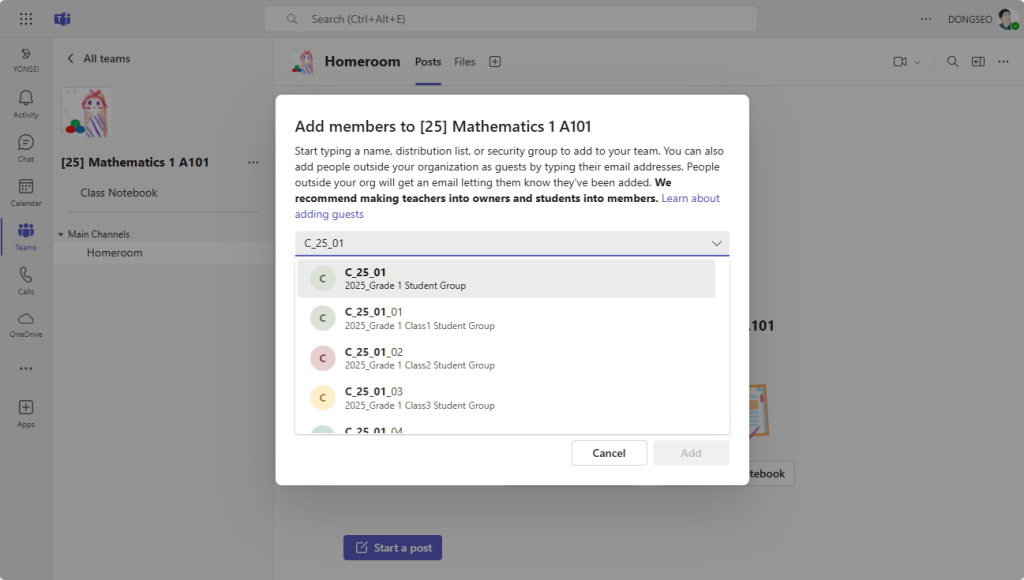
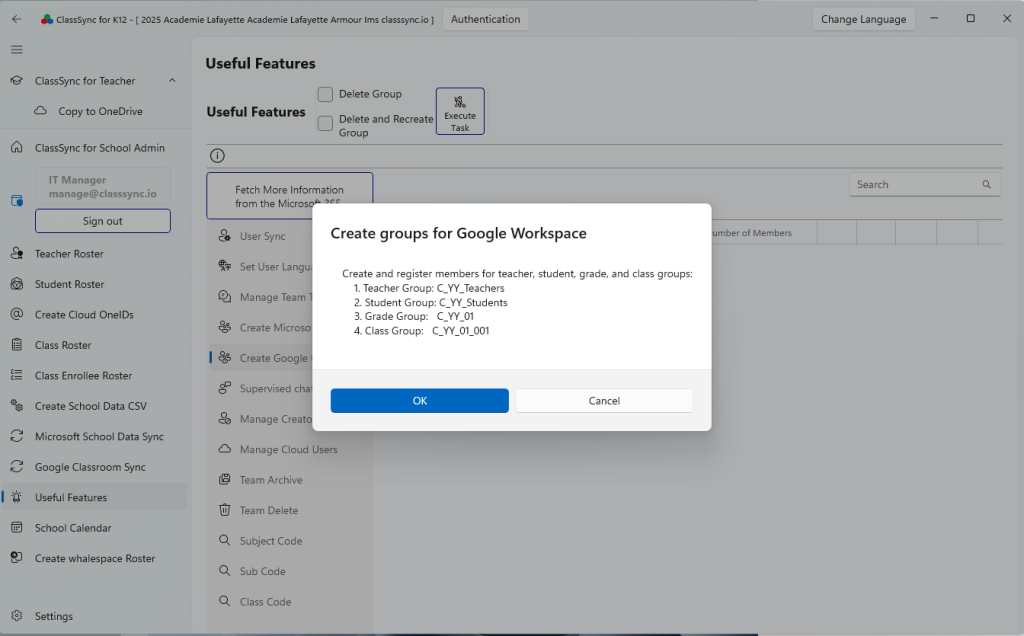
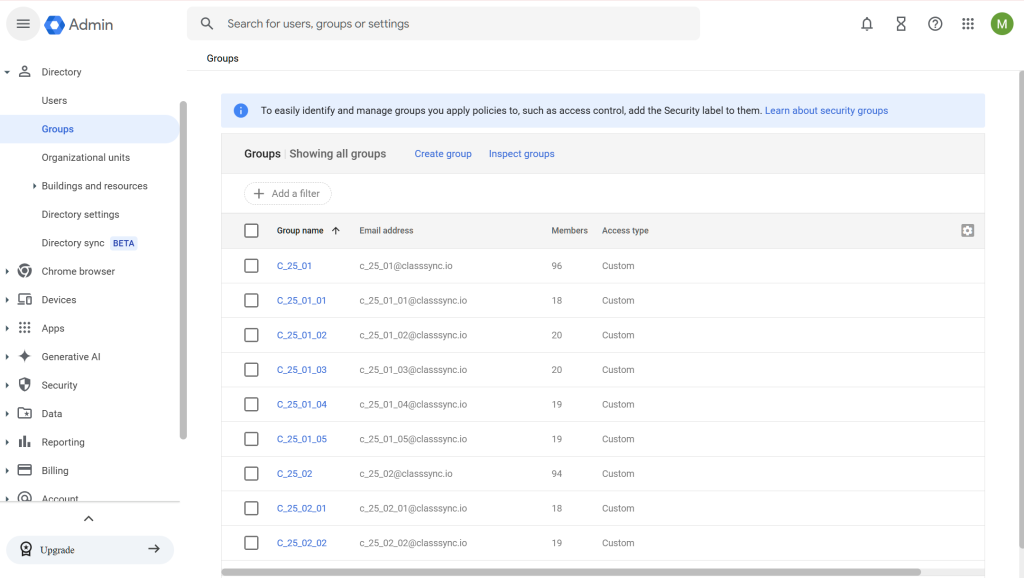
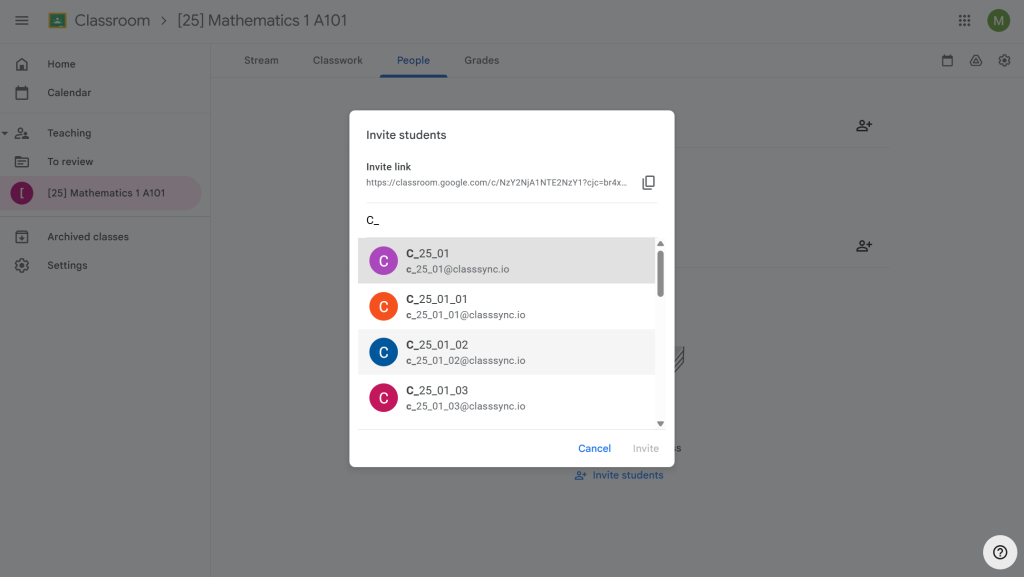
class groups for both Microsoft Teams and Google Classroom
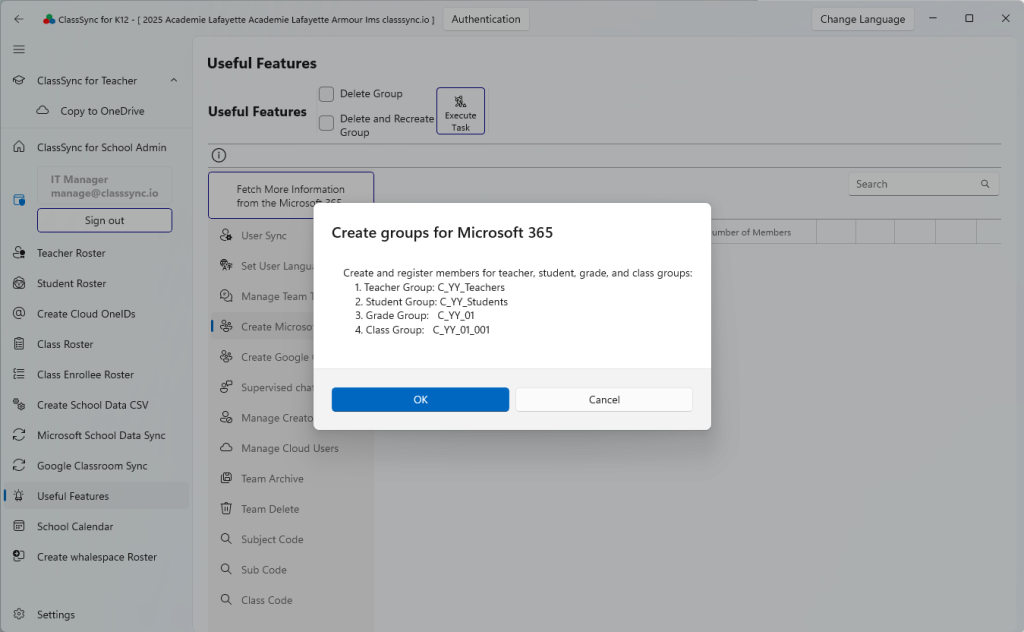
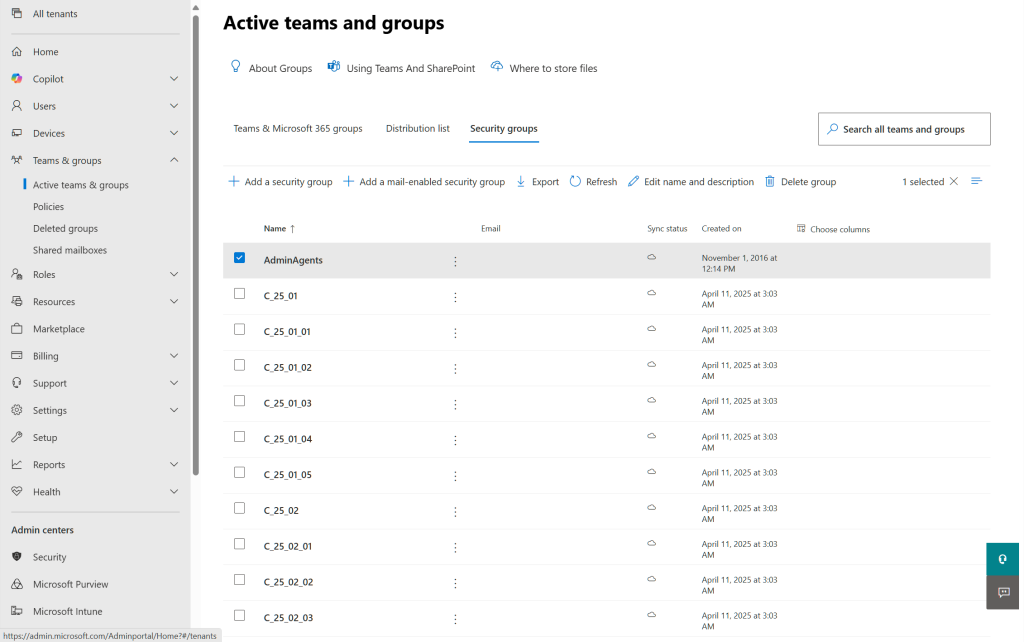
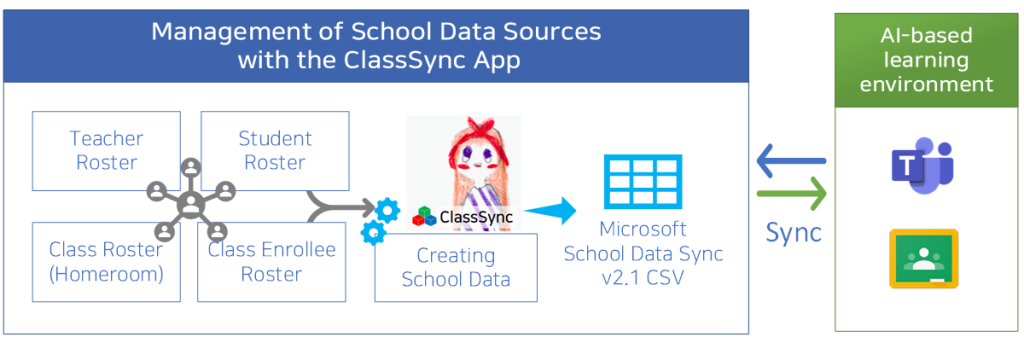
ClassSync automatically creates class-based groups in Google Workspace and Microsoft 365 using teacher and student rosters. These groups can then be selected in Google Classroom and Microsoft Teams to quickly add users, streamlining collaboration and management for educational institutions.
All data is stored locally on the device, ensuring maximum privacy and compliance.
We do not store your roster data on our servers. All rosters managed through the ClassSync app are processed and stored locally on your device. We take your privacy very seriously and ensure that it is never misused. Learn more
Teacher Roster
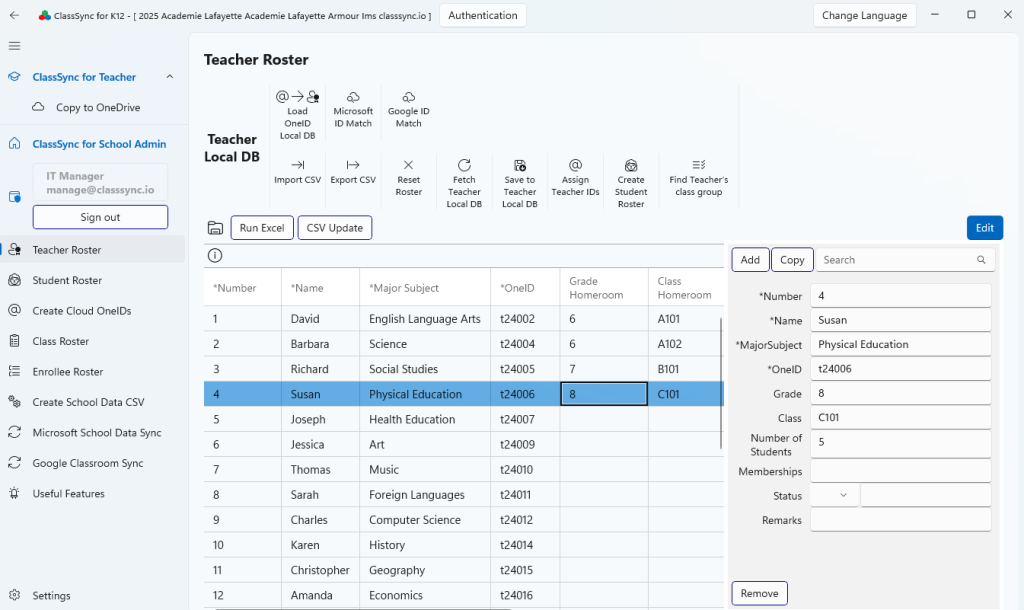
This screen provides functionality for managing the teacher roster. You can view and manage basic information such as each teacher’s name, email ID (OneID), subject, and assigned class. The email ID (OneID) is used for Google Workspace and Microsoft 365 accounts. Additionally, class information is utilized for creating class groups in both platforms and is also used when generating student rosters in bulk based on class details and student counts. By using the Google ID Match and Microsoft ID Match features, you can retrieve user IDs from the cloud (Google Workspace, Microsoft 365) that match the names in the teacher roster and display them on this screen.
Student Roster
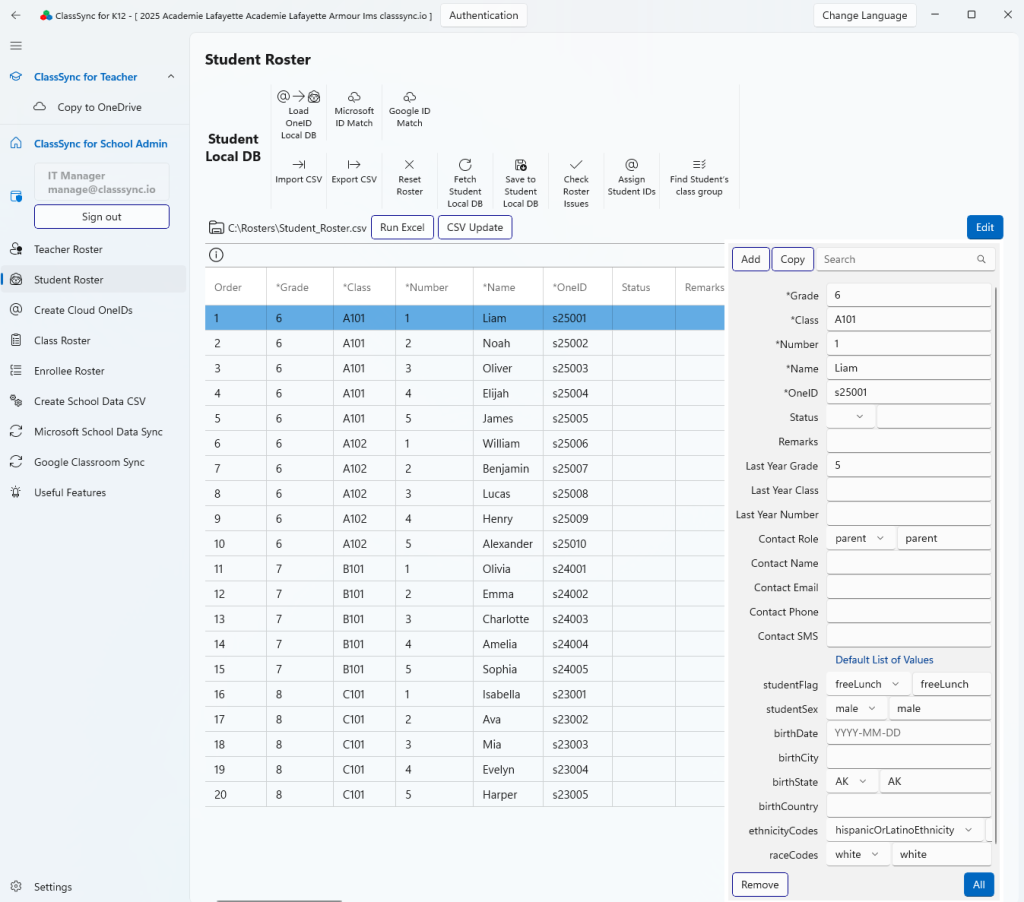
This screen provides functionality for managing the student roster. You can view and manage information such as student ID, name, email ID (OneID), assigned class, and grade level. It includes the default input fields for School Data Sync (see: Default list of values – School Data Sync | Microsoft Learn). The student roster serves as key data for Google Workspace and Microsoft 365 accounts, class group creation, and Classroom/Teams synchronization. Additionally, by using the Google ID Match and Microsoft ID Match features, you can retrieve user IDs from the cloud (Google Workspace, Microsoft 365) that match the names in the student roster and display them on this screen.
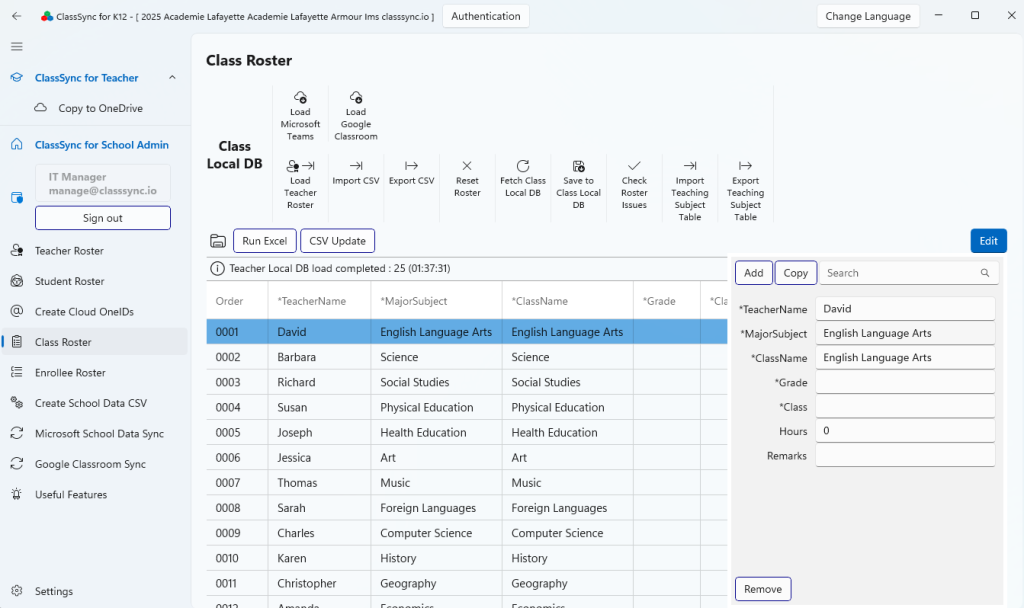
Class Roster : Manage rosters based on established classes and courses
This screen manages rosters based on the established classes and courses, with class information mapped from the teacher roster. It is utilized for subject-level data mapping when generating Microsoft SDS CSV files. Additionally, the roster is used for synchronizing Microsoft Teams class teams and Google Classroom classes.
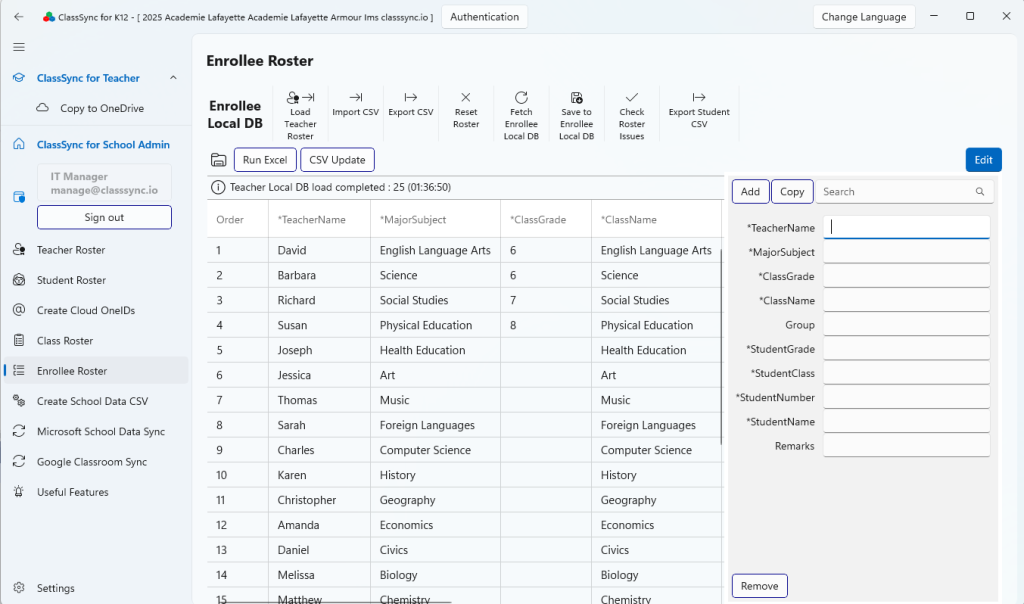
Enrollee Roster : Manage rosters based on established courses and enrolled students
This screen manages rosters based on the established courses and the students enrolled in them. The roster is utilized for subject-level data mapping when generating Microsoft SDS CSV files and is also used for synchronizing Microsoft Teams class teams and Google Classroom classes.
SDS V2.1 CSV File Format (Save to the folder selected by the user)
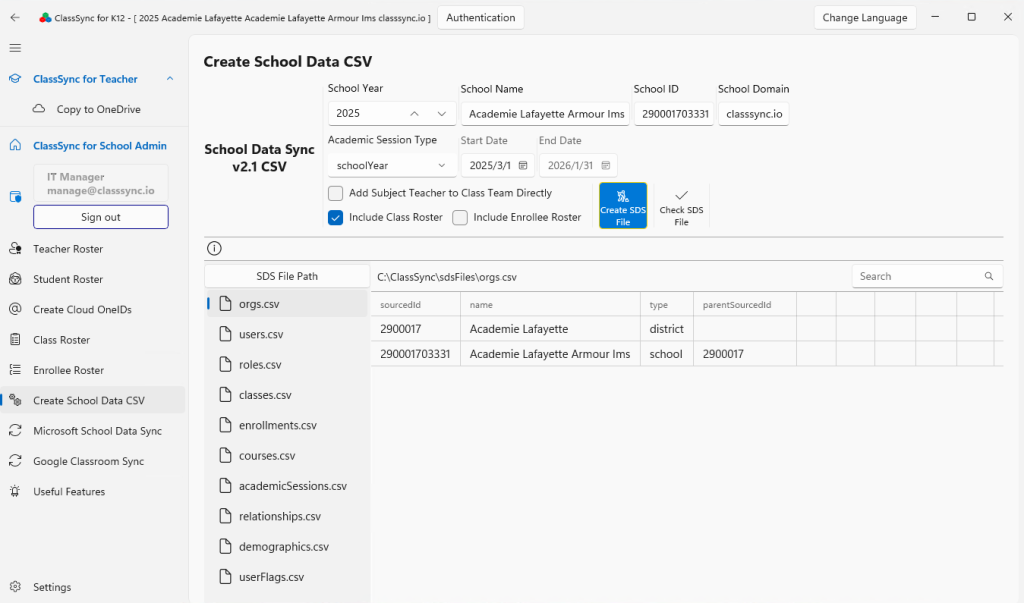
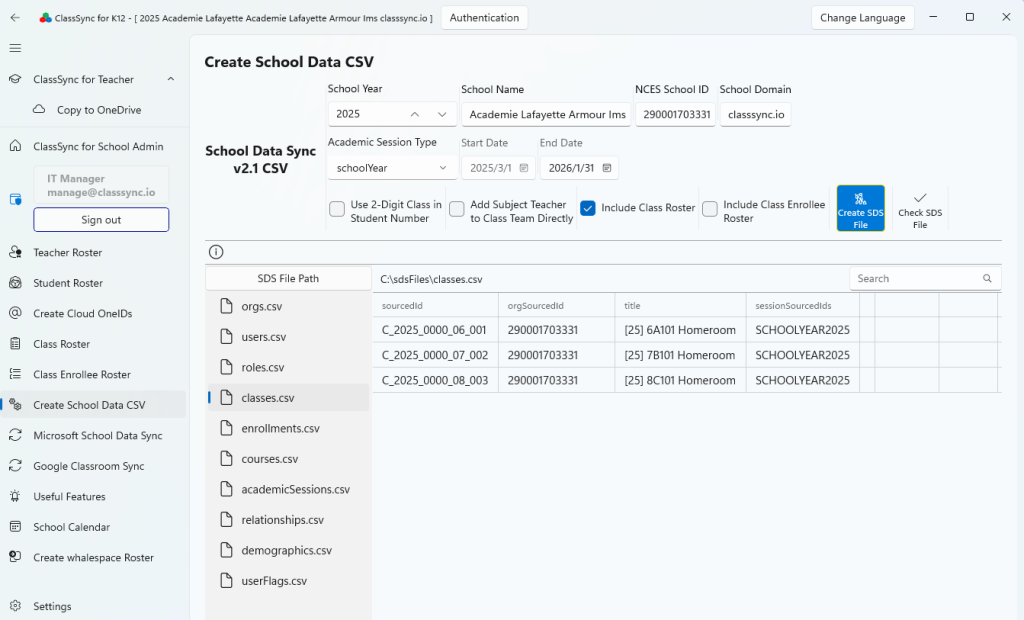
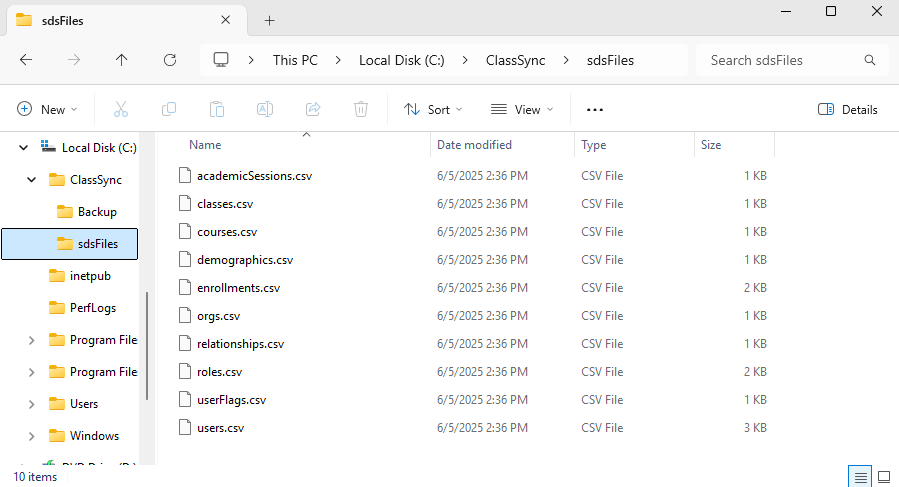
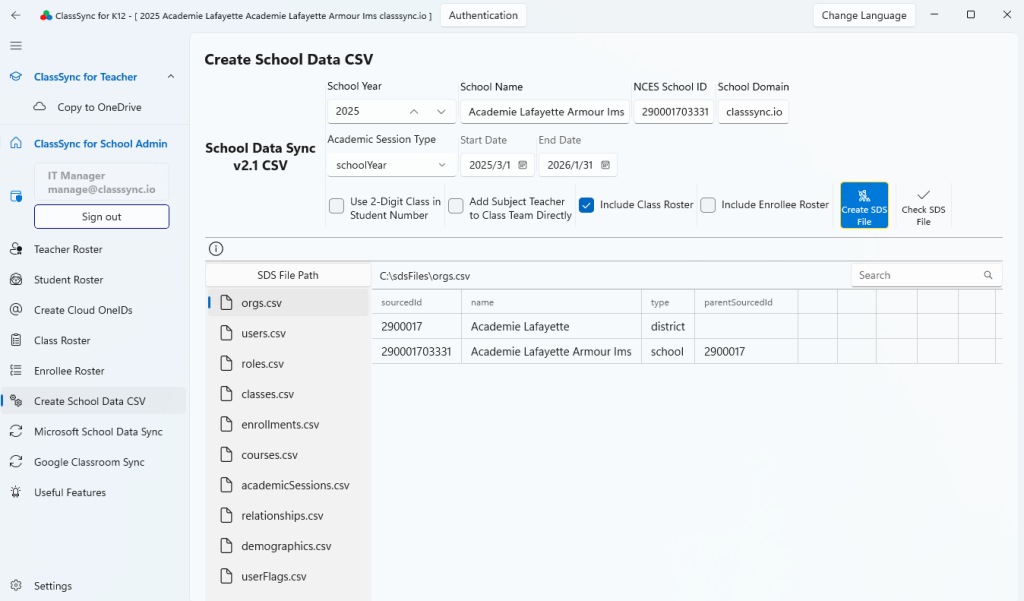
This screen provides functionality for generating CSV files in the Microsoft School Data Sync (SDS) v2.1 format. In the upper section, you can configure the school year, school name, school ID, domain, and academic session dates (start and end). There are options to add subject teachers directly to Teams class teams and to include class rosters or enrollee rosters. After completing the settings, clicking the Create SDS Files button generates CSV files compliant with SDS standards. The lower section displays the list of generated files, which include: orgs.csv, users.csv, roles.csv, classes.csv, enrollments.csv, courses.csv, academicSessions.csv , relationships.csv, demographics.csv, and userflags.csv. A search bar on the right allows you to quickly locate specific files.
Maintain a single roster to manage both platforms effortlessly.
ClassSync enables schools to manage teacher, student, and class rosters internally, automatically generating Microsoft SDS CSV v2.1 files. These files can be uploaded to Microsoft School Data Sync to synchronize Teams class teams. Additionally, the Google Classroom Sync feature connects to the SDS CSV v2.1 files as a data source to synchronize classes in Google Classroom. Administrators can view class lists, archive or delete classes—all through an intuitive interface.
1. Support for Microsoft School Data Sync (SDS) CSV v2.1 File Format
1-1. Create School Data CSV v2.1 Format Files
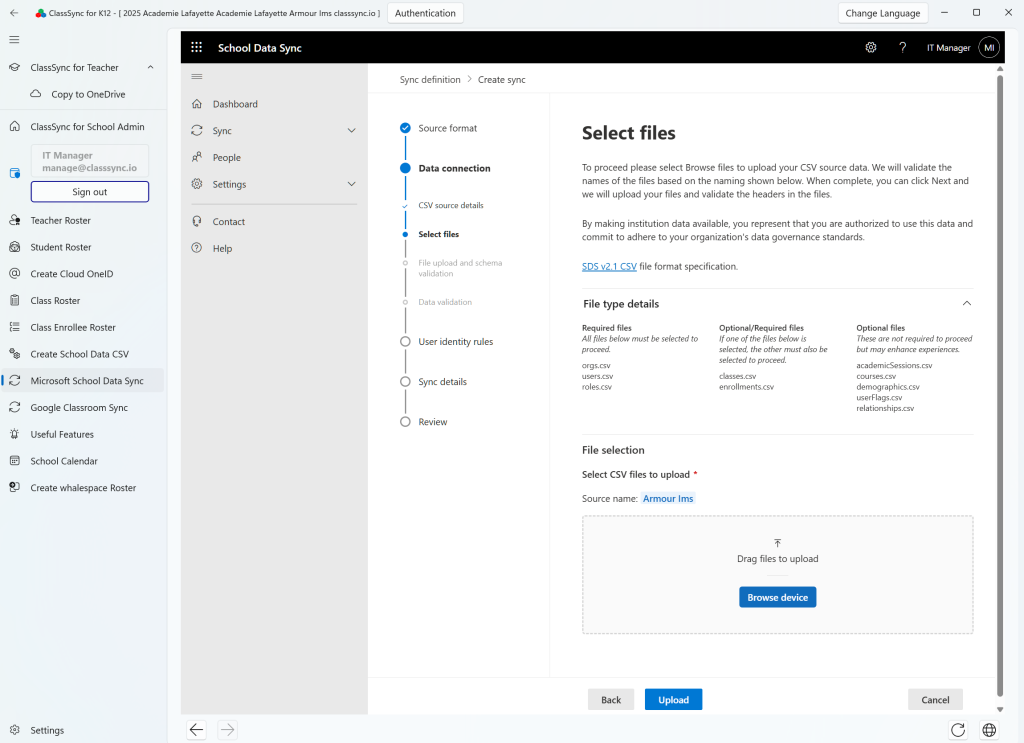
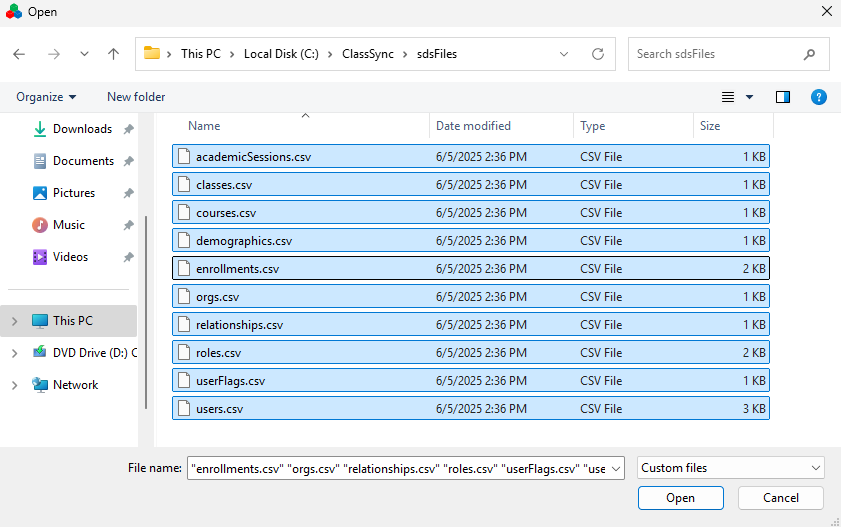
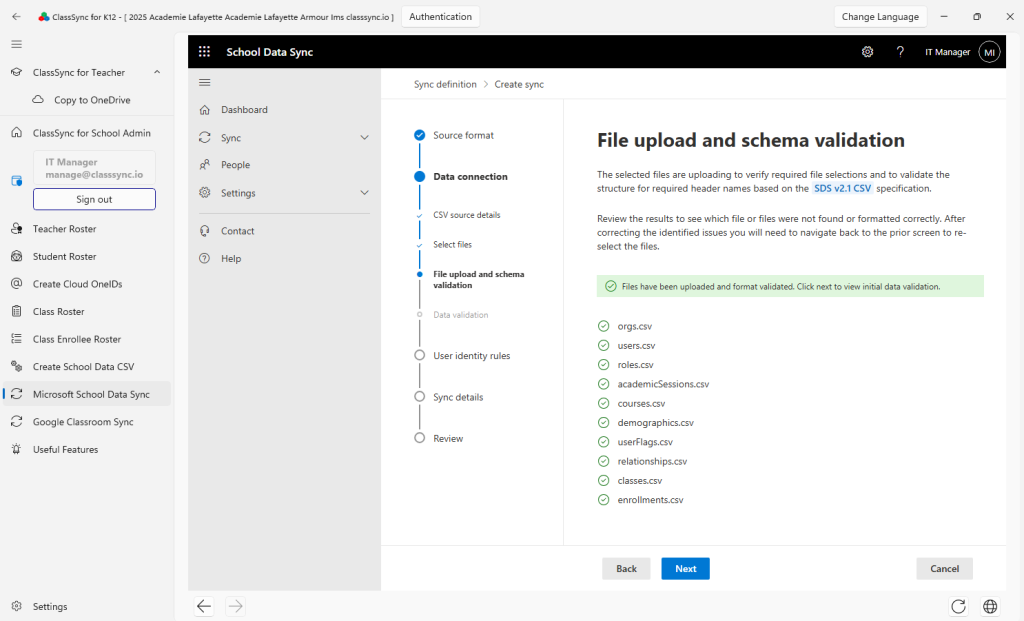
1-2. Upload SDS CSV v2.1 files in Microsoft School Data Sync
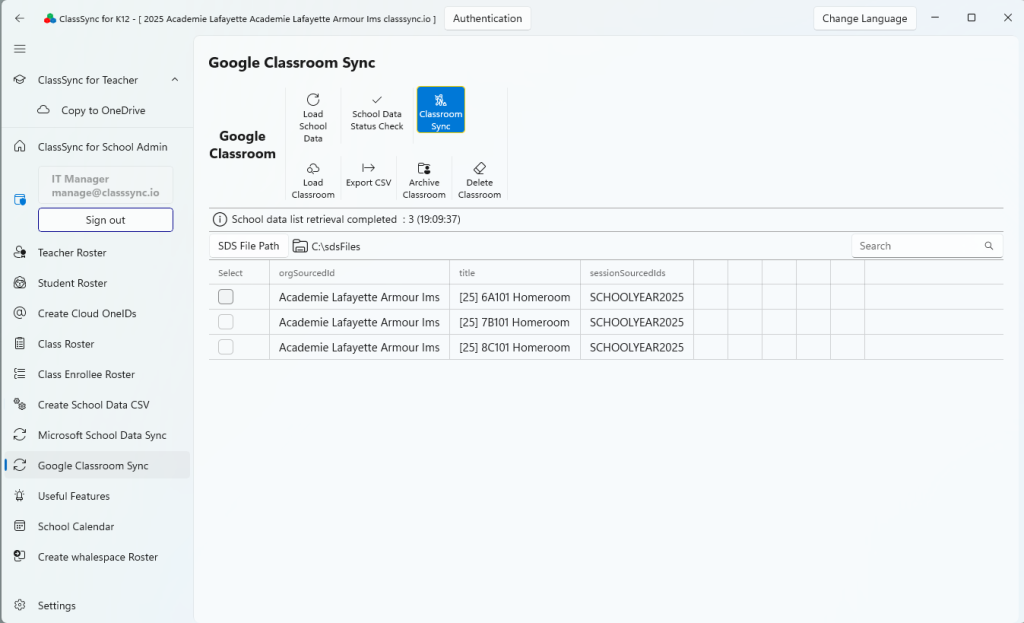
2. Create Google Classroom classes with SDS CSV v2.1 files
Google Classroom Sync is a feature that automatically creates and manages Google Classrooms based on your school’s class data. By loading SDS (School Data Sync) files, you can review class information and create or update Classrooms with just one click. It also allows you to archive or delete existing Classrooms and export data to CSV for efficient management.
Key Features:
Automatically create and sync Google Classrooms by class
Integrates with SDS (School Data Sync) for accurate data mapping
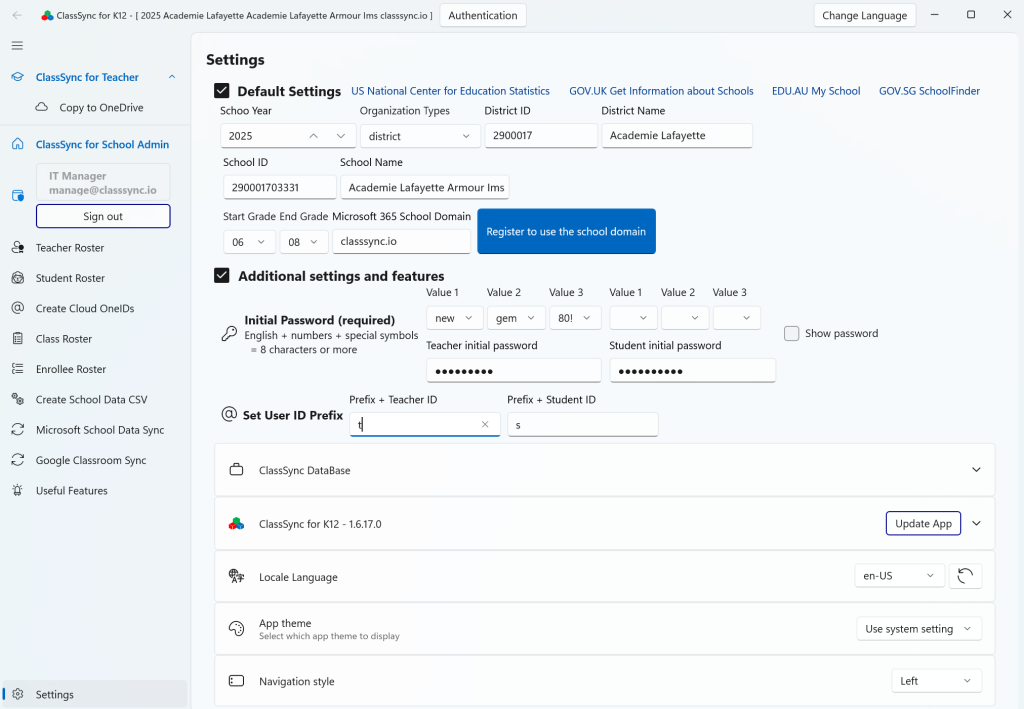
Enter the following items in the ClassSync app settings screen: District ID, District Name, School ID, School Name, Start Grade, and End Grade.
Only users who have either Global Administrator or User Administrator permissions and are assigned a teacher license can log in and complete the initial setup in ClassSync.
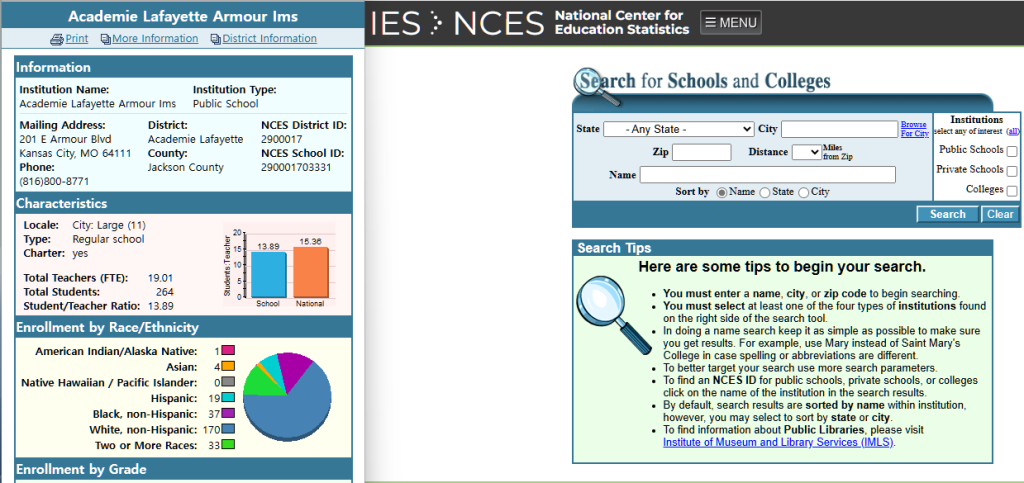
It is recommended to use official NCES data for accuracy. However, the app does not validate the values entered for NCES IDs or school names, so users must ensure correctness manually. When you click the “Register to use the school domain” button, the entered settings are saved.
Code Example
District ID : 2900017 / District Name : Academie Lafayette
School ID : 290001703331 / School Name : Academie Lafayette Armour Ims
Start Grade : 06 / End Grade : 08
Enter initial password
First-Time Setup: Required Values
Academic Year
Example: 2025
Used to organize data by school year.
District ID & Name
Example: CA123 – Los Angeles Unified School District
Identifies the school district for SDS and reporting.
School ID & Name
Example: 0622710 – Lincoln High School
school code and official name for accurate mapping.
Grade Level
Example: 9th Grade, 10th Grade, etc.
Used for grouping and class assignments.
Administrator Domain
Example: lincolnhs.k12.ca.us
This information is required for configuring the user’s UPN (User Principal Name), and the domain included in the administrator’s UPN will be registered automatically.
Initial User Password
Example: Welcome2025!
Default password for first login (users should change it after login).
Note: For new users created via SDS, the password set in the SDS configuration screen will be applied.
ID Prefix for Teachers and Students
Example: tch_ for teachers, stu_ for students
Microsoft School Data Sync
In the school data list creation feature, the entered values are used when generating the Microsoft School Data Sync v2.1 CSV Files
Creating a learning environment that enriches students’ experiences
ClassSync is a unified management solution for educational Google Workspace and Microsoft 365. It automatically creates class-based groups and enables easy user additions in Google Classroom and Microsoft Teams. With support for SDS integration through School Data Sync CSV v2.1 file generation and automated class creation via Google Classroom Sync, managing educational data becomes simpler than ever.
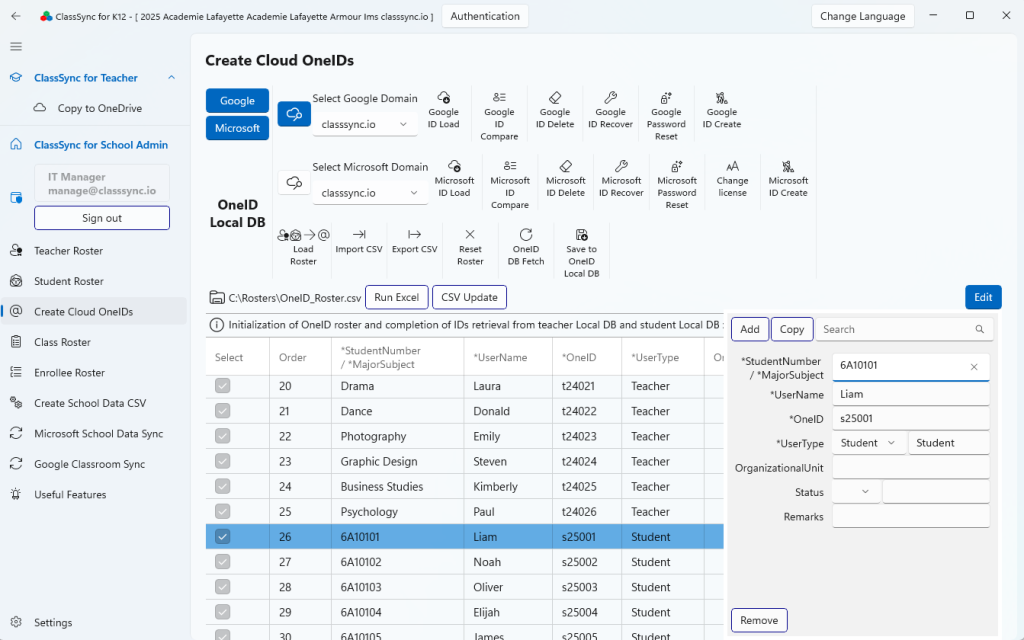
Create Cloud OneIDs : Manage Google Workspace and Microsoft 365 Education Accounts Using a Single School ID Data Source
App Access & Role-Based Features
Users with Global Administrator permissions and a teacher license can:
Complete the initial setup of ClassSync
Register and manage school domain settings
Manage user accounts and group provisioning
Generate and upload SDS CSV v2.1 files
Manage integration with Microsoft Teams and Google Classroom
Users with User Administrator permissions and a teacher license can:
Complete the initial setup of ClassSync
Register and manage school domain settings (requires global administrator approval)
Manage user accounts
All users can:
No initial setup is required to use the file copy feature
ClassSync provides a file transfer feature for teachers and students who are moving to a different school. This allows them to securely copy and transfer their teaching materials, learning resources, and class-related files to their new school environment, ensuring continuity and minimizing setup time.