
Copy OneDrive and Google Drive Files to Another OneDrive Account
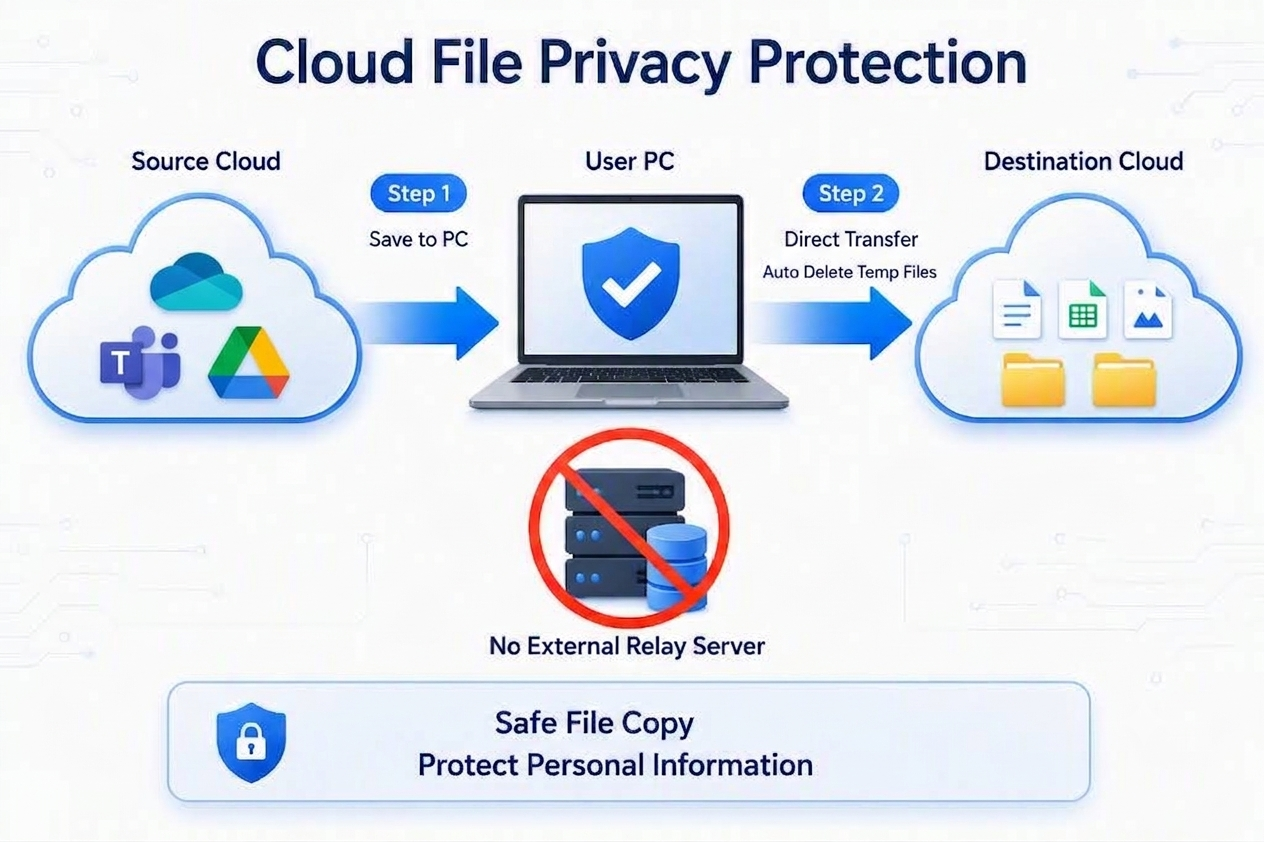
ClassSync Mover supports cross-tenant OneDrive migration by copying selected files and folders between Microsoft 365 school accounts. It also supports Google Drive to OneDrive and Microsoft Teams to OneDrive file transfers. Original files remain in the source account. Transfer data is processed on the user’s local PC and is not stored on ClassSync or third-party external servers.
Unlike a full Microsoft 365 tenant migration, ClassSync Mover does not move the entire OneDrive account, user identity, permissions, or tenant configuration. It copies selected files and folders to the destination OneDrive while keeping the original content in the source account.
Cross-Tenant OneDrive and Cloud File Transfer Overview
Supported Cross-Tenant OneDrive Migration and Cloud Transfer Sources
ClassSync Mover supports cross-tenant OneDrive migration by copying selected files between Microsoft 365 school accounts. It also copies selected files from Microsoft Teams or Google Drive to the destination OneDrive.
| Source | Destination | Transfer Type | Content Copied |
|---|---|---|---|
| OneDrive, Previous School Account | OneDrive, New School Account | Cross-Tenant OneDrive File Copy | Personal files, teaching materials, and folders |
| Microsoft Teams Class Materials | OneDrive, New School Account | Teams to OneDrive Transfer | Assignments, class materials, and shared resources |
| Google Drive | OneDrive, New School Account | Google Drive to OneDrive Transfer | Files, folders, and supported Google Workspace content |
How Cross-Tenant OneDrive Migration Works in 3 Steps
For the simplest and most reliable file copy, follow the recommended three-step process below. Loading the destination list and using Auto Select helps exclude files that have already been copied and makes it easier to resume an interrupted transfer.
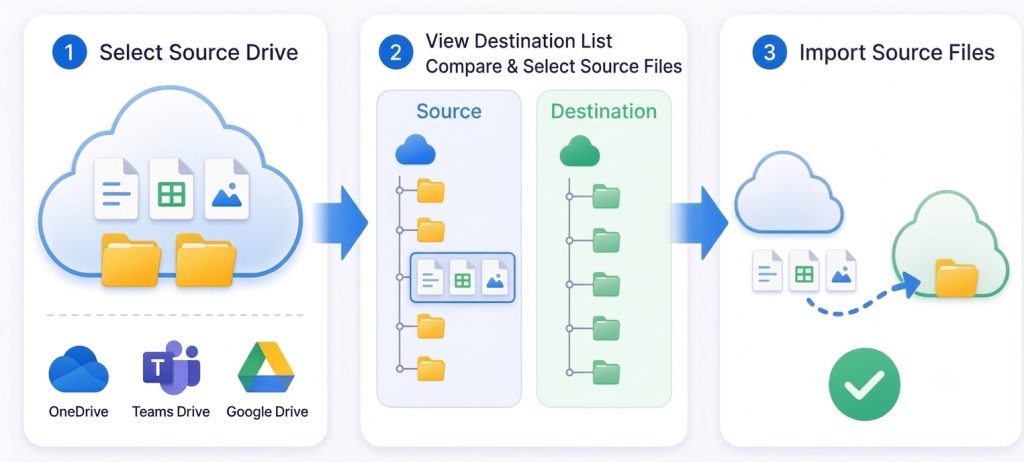
Step 1. Select Source Drive
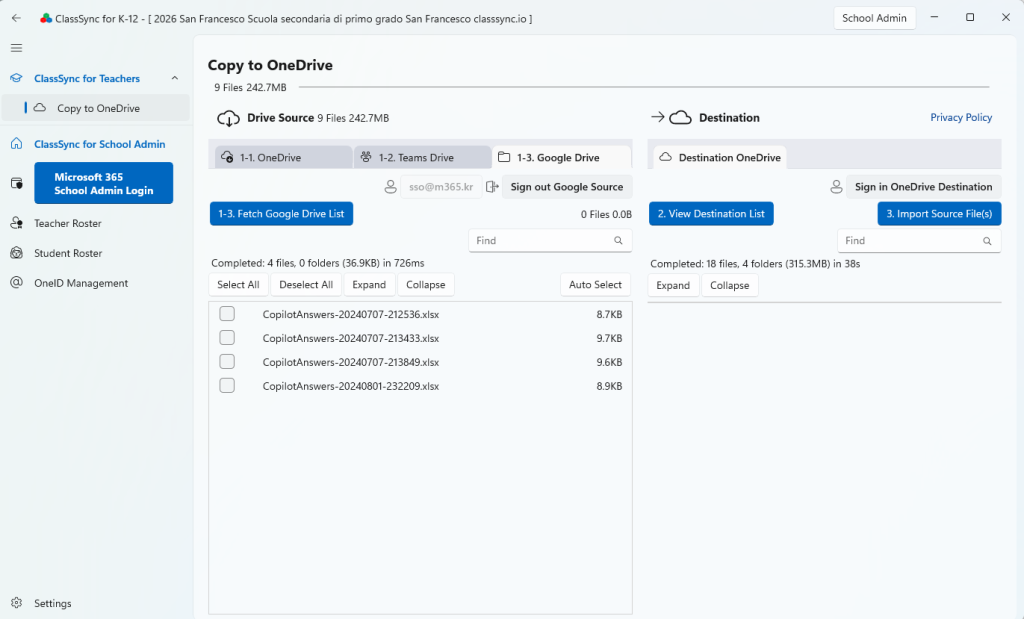
Select OneDrive, Microsoft Teams, or Google Drive as the source, and then fetch the file list. ClassSync Mover signs in when required and displays the available files and folders.
1-1. OneDrive: Fetch OneDrive List
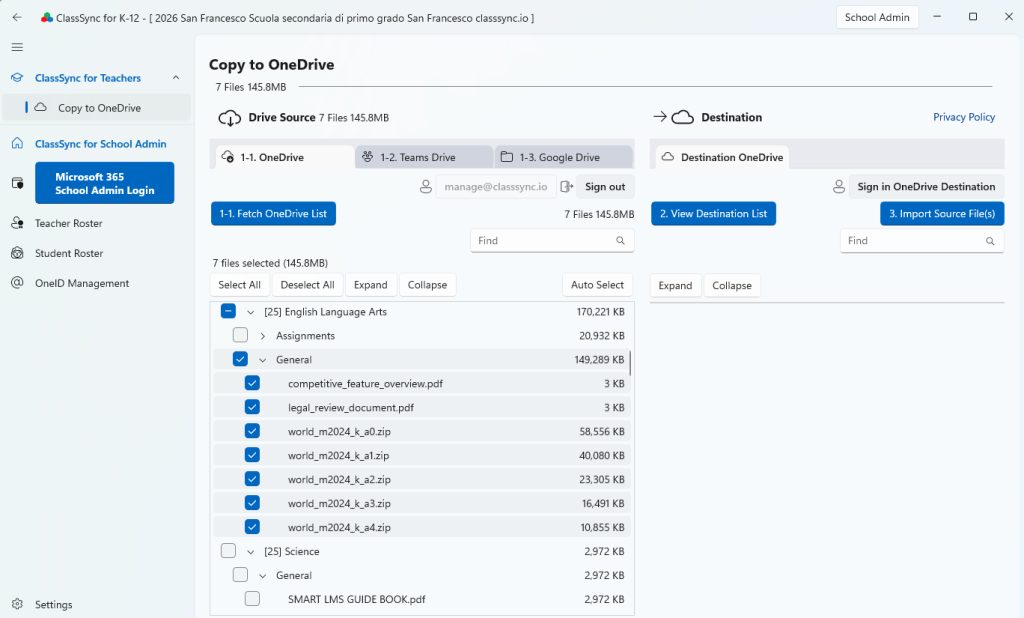
1-2. Microsoft Teams: Fetch Teams List
Microsoft 365 administrator approval may be required before ClassSync Mover can display files stored in Microsoft Teams.
If the Teams file list does not appear, contact your school’s Microsoft 365 administrator. After approval is completed, enable the Teams option and select Fetch Teams List again.
1-3. Google Drive: Fetch Google Drive List
Step 2. View the Destination List and Use Auto Select
Select View Destination List to sign in to the destination OneDrive and display the files and folders already stored there. Then select Auto Select to compare the source and destination lists.
Auto Select compares the file path, file name, and file size in both lists. Files that exist in the source but are not found in the destination are automatically selected.
This feature is useful when copying many files or restarting an interrupted transfer. Auto Select helps exclude files that have already been copied and quickly selects the files that still need to be transferred.
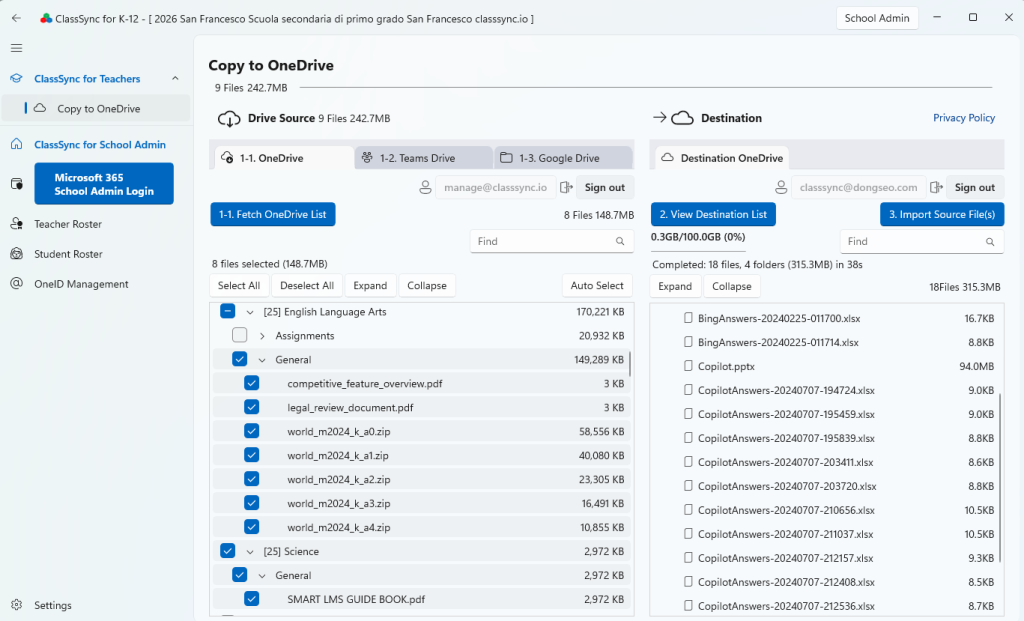
File size helps Auto Select compare the source and destination lists. When copying begins, an existing destination file is overwritten if its folder path and file name match the selected source file.
Step 3. 3. Import Source File(s)
Select Import Source File(s) to copy the selected files and folders to the destination OneDrive. The operation creates copies in the destination and does not move, delete, or modify the source files.
The Pending count displayed on the transfer screen may include files waiting at different processing stages, so it may not match the number of files in the internal upload queue..
Current Default File Transfer Settings
• Files downloading at the same time: up to 4
• Files waiting to upload: up to 5
• Files uploading at the same time: up to 4
These values are the current defaults and may change in future versions as transfer performance, stability, and resource usage are improved.
⚠️ Unsupported Files for ClassSync Mover(Copy to OneDrive)
The following Google-native formats cannot be transferred directly to OneDrive as they are cloud-only objects.
- Apps Script: Manual code export is required via the editor.
- Forms: Only the linked response spreadsheet can be transferred.
🎯 Common Use Cases
- School Transfers: Use cross-tenant OneDrive migration to copy selected teaching and learning materials from an existing Microsoft 365 school account to a new OneDrive account.
- Account Changes: Copy files from an old Microsoft 365 account to a newly issued school account.
- Google Drive to OneDrive: Copy supported files and folders from Google Drive to OneDrive.
- Staff Departure or Retirement: Copy selected work files to an approved archive or destination account before access expires.
- School Reorganization: Copy selected files when school accounts change because of consolidation or system restructuring.
⚠️ Important Notes & Requirements
- Account Sign-in: Sign in to both the source cloud and destination OneDrive before starting the copy.
- Destination Storage: Ensure that the destination OneDrive has sufficient available storage.
- Local Temporary Storage: Sufficient local storage is required for files currently moving through the transfer pipeline.
- Stable Connection: Keep the internet connection active and do not close the app or shut down the PC until the copy is complete.
- Large Transfers: Large files or many selected files may require additional processing time depending on PC performance, network conditions, and cloud service responses.
- Source Files: The copy operation does not delete or modify source files.
- Existing Files: If the source and destination paths and file names are identical, the destination file is overwritten with the source content.
- Permissions: Some files may not be copied because of source-cloud permissions, organizational policies, or API restrictions.
- Processing Limits: Actual activity may vary depending on file sizes, PC performance, network conditions, and cloud API responses.
📋 Frequently Asked Questions (FAQ)
Q1. What is cross-tenant OneDrive migration?
It refers to transferring OneDrive content between different Microsoft 365 organizations or school accounts. ClassSync Mover copies selected files and folders while keeping the source files unchanged.
Q2. Does ClassSync move the entire OneDrive account?
No. ClassSync Mover copies selected files and folders. It does not migrate the user account, permissions, sharing settings, or Microsoft 365 configuration.
Q3. Can students use this feature?
Yes. Students can sign in to their source and destination school accounts and copy supported files to the destination OneDrive.
Q4. Can I copy OneDrive files to another school account?
Yes. Sign in to both OneDrive accounts, select the source files and folders, and copy them to the destination OneDrive.
Q5. Can I transfer Google Drive files to OneDrive?
Yes. Supported Google Drive files and folders can be copied to OneDrive. Google Docs, Sheets, and Slides are converted automatically, while some cloud-only items are excluded.
Q6. Can I copy Microsoft Teams files?
Yes. Supported files stored in Microsoft Teams can be selected and copied to the destination OneDrive.
Q7. Will the original files be deleted?
No. Source files remain unchanged, and copies are created in the destination OneDrive.
Q8. What happens if the same file already exists?
If the source and destination paths and file names are identical, the destination file is overwritten with the source content.
Q9. Are copied files stored on external servers?
No. Transfer data is processed on the user’s local PC and is not stored on ClassSync’s external servers.
Q10. Does ClassSync download all files before uploading them?
No. Files begin uploading as soon as their downloads are complete and upload capacity becomes available. The app does not need to store all selected files locally before uploading begins.
Q11. Why does ClassSync use a parallel transfer pipeline?
The pipeline reduces temporary storage requirements by processing a limited number of files at each stage. It also allows downloading and uploading to continue concurrently.
Q12. Can I copy files without viewing the destination list?
Yes. If the destination OneDrive is signed in, selected source files can be copied without loading the destination list. However, the destination list will remain empty in the app, and destination comparison and Auto Select will not be available.
For the recommended workflow, especially when copying many files or restarting an interrupted transfer, fetch the source list, view the destination list, use Auto Select, and then select Import Source File(s).