
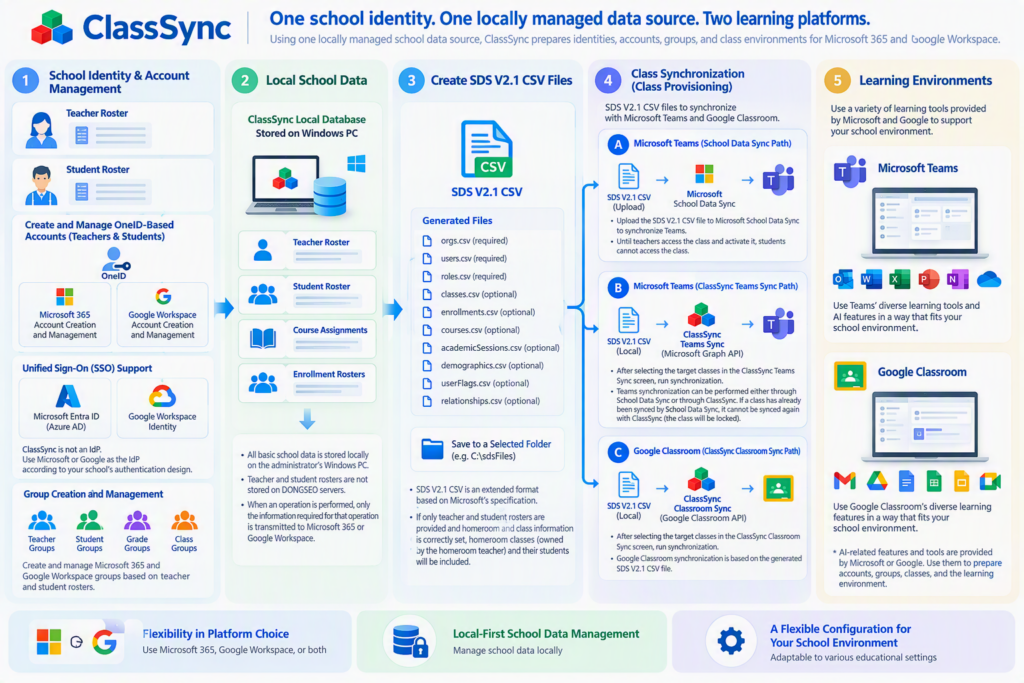
One school identity. One locally managed data source. Two learning platforms.
ClassSync standardizes the local identity, roster, group, and class-provisioning workflow used to manage Microsoft 365 and Google Workspace™ school environments.
Schools can use a common OneID and roster structure across both platforms, configure their preferred Microsoft or Google identity architecture, and select the class-provisioning method appropriate for Microsoft Teams or Google Classroom™.
ClassSync does not replace Microsoft or Google identity and learning services. It provides the local administration and provisioning layer that helps schools use the capabilities of either or both platforms.
One Local School Data Source
The ClassSync configuration begins with a common set of locally managed school information:
- Teacher Roster
- Student Roster
- OneID mappings
- Course Assignments
- Enrollment Rosters
- Academic calendars and timetables
These records form the common data source for supported identity, account, group, class, and enrollment operations.
Teacher and student rosters are primarily maintained in the local ClassSync database rather than in a DONGSEO-operated central roster repository.
When an administrator initiates a supported external operation, only the information required for that operation is transmitted to the applicable school-managed Microsoft 365 or Google Workspace environment.
OneID and Account Provisioning
ClassSync uses OneID as a common local identifier for managing corresponding school users across Microsoft 365 and Google Workspace™.
Using the same teacher and student rosters, administrators can prepare corresponding Microsoft 365 and Google Workspace user accounts with a consistent account structure.
ID Matching
ID Matching compares locally managed roster entries that do not yet have an assigned OneID with existing Microsoft 365 or Google Workspace user information.
If multiple users have the same name, ClassSync does not automatically select one account based only on the matching name. The administrator reviews the matching results before confirming the appropriate account.
ID Synchronization
When an administrator initiates ID Synchronization, ClassSync can use locally managed roster information to create supported Microsoft 365 or Google Workspace user accounts or update existing account information within the approved permissions.
OneID Management
Administrators can use OneID Management for supported operations involving:
- Microsoft 365 and Google Workspace account mappings
- user-account domains
- Google Workspace organizational units
- Microsoft 365 licenses
- Microsoft 365 display-language settings
This allows the same locally managed school identity structure to be used across both platforms.
Using a consistent account structure, schools can configure their authentication environment according to their own identity architecture and use Microsoft or Google identity technologies as the Identity Provider (IdP).
ClassSync itself does not act as the Identity Provider or authentication service.
ClassSync’s role is to standardize and maintain the corresponding user accounts and identifiers required for the school’s selected identity architecture.
Groups on Both Platforms
The same teacher and student rosters can also be used for supported group-management operations in Microsoft 365 and Google Workspace™.
ClassSync can create and manage supported group structures such as:
- grade-level student groups
- class-level student groups
- an all-students group
- an all-teachers group
This allows schools to maintain Microsoft and Google group structures from the same underlying roster information instead of preparing separate source rosters for each platform.
From School Rosters to Learning Environments
ClassSync uses four principal types of locally managed information to prepare the school’s class environment:
- Teacher Roster
- Student Roster
- Course Assignments
- Enrollment Rosters
Course Assignments define information such as the assigned teacher, subject, class name, grade, class group, and related class information.
Enrollment Rosters define which students are assigned to each class.
After these records have been prepared, administrators can select the class-provisioning method appropriate for Microsoft Teams or Google Classroom™.
SDS V2.1 CSV as the Common School Data Source
ClassSync generates SDS V2.1 CSV files from the locally managed Teacher Roster, Student Roster, Course Assignments, and Enrollment Rosters.
The generated SDS V2.1 CSV data can represent the school users, roles, classes, enrollments, and other supported school information required for class provisioning.
Microsoft’s SDS V2.1 CSV format uses orgs.csv, users.csv, and roles.csv as the core files. When classes and enrollments are managed, classes.csv and enrollments.csv are also required. The format additionally supports files including academicSessions.csv, courses.csv, relationships.csv, demographics.csv, and userFlags.csv.
Class Provisioning Paths
ClassSync generates SDS V2.1 CSV files from locally managed teacher, student, course-assignment, and enrollment information and uses the generated SDS V2.1 CSV data as a common school data source for multiple class-provisioning paths.
Google Classroom™
Local ClassSync Data → SDS V2.1 CSV → ClassSync Classroom Sync → Google Classroom™
Microsoft Teams, ClassSync Direct Synchronization
Local ClassSync Data → SDS V2.1 CSV → ClassSync Teams Sync → Microsoft Teams
Microsoft Teams, Microsoft School Data Sync
Local ClassSync Data → SDS V2.1 CSV → Microsoft School Data Sync → Microsoft Teams
ClassSync Classroom Sync, ClassSync Teams Sync, and Microsoft School Data Sync are separate provisioning paths, but they can use the same SDS V2.1 CSV data generated by ClassSync as their common school data source.
When School Data Changes
When the Teacher Roster, Student Roster, Course Assignments, or Enrollment Rosters are updated, ClassSync regenerates the SDS V2.1 CSV files to reflect the updated locally managed school data before the applicable synchronization is run again.
Microsoft School Data Sync
After the SDS V2.1 CSV files are regenerated, the required CSV file set is uploaded again to Microsoft School Data Sync.
Microsoft states that after the initial upload, subsequent uploads should continue to provide the same file set even when data in optional files has not changed.
ClassSync Google Classroom Sync
Regenerate the SDS V2.1 CSV files to reflect the updated local school data, then select the affected classes in ClassSync Google Classroom Sync and run synchronization again.
ClassSync Microsoft Teams Sync
Regenerate the SDS V2.1 CSV files to reflect the updated local school data, then select the affected class teams in ClassSync Microsoft Teams Sync and run synchronization again.
Administrator Provisioning, Teacher Control
ClassSync is designed to separate school-wide class provisioning from the teacher’s control of when a prepared class becomes available for instruction.
Using locally managed teacher, student, class, and enrollment information, a school administrator can prepare classes and their teacher and student memberships in advance for Microsoft Teams or Google Classroom™.
Both platforms support a similar administrator-provisioning and teacher-control model, although their specific activation workflows differ.
- Google Classroom™: an API-created course can initially be
PROVISIONED. The assigned owner teacher can accept the class, allowing the course to becomeACTIVE. Google states thatACTIVEcourses are available to students. - Microsoft Teams: the assigned teacher can receive access to a provisioned Class Team before students. Students do not gain access until the teacher selects Activate. This teacher-activation behavior is documented by Microsoft for early-access Class Teams created through School Data Sync.
This common model allows school administrators to prepare classes and rosters at scale while giving the assigned teacher control over when the prepared learning environment becomes available to students.
From Provisioning to Learning
ClassSync’s role is to prepare the supported identities, accounts, groups, memberships, classes, and rosters required for the school’s selected learning environments.
After provisioning and the applicable teacher-controlled activation or acceptance step, teachers and students can use the educational capabilities provided by Microsoft or Google according to the school’s licenses, service configuration, and feature availability.
The Microsoft and Google learning tools and educational capabilities shown in ClassSync Design are provided by their respective platform providers.
Google Classroom Help currently includes documentation for learning experiences such as Practice sets, interactive questions for YouTube videos, Read Along, Gemini in Classroom, and Gemini Notebook & Gems.
Learning tools and AI-enabled educational capabilities shown in ClassSync Design are provided by Microsoft or Google. ClassSync provides the supported identity, roster, group, class, and provisioning layer that helps schools use those learning environments.
Designed for Platform Choice
ClassSync is designed for schools that want to use the strengths of Microsoft Teams, Google Classroom™, or supported combinations of both without rebuilding the school’s identity and roster-management processes for each learning platform.
A common local structure for:
- OneID
- teacher accounts
- student accounts
- groups
- classes
- course assignments
- enrollment rosters
allows schools to choose the learning platform and provisioning approach appropriate for each educational workflow.
ClassSync provides the standardized local administration and provisioning layer. Microsoft and Google provide the identity, collaboration, classroom, and learning-platform services used by the school.
The objective is to make the learning platform easier to select, combine, or change without requiring the school to redesign its underlying roster-management model each time.
Rapid Deployment without Another Central Roster Platform
ClassSync is designed to standardize school account provisioning without requiring DONGSEO to operate an additional central roster platform.
An authorized school administrator can install the Windows application, prepare the necessary school data locally, and use supported Microsoft 365 and Google Workspace™ APIs for account, group, class, calendar, and resource-management operations.
This approach allows schools to use cloud identity and learning services already provided by Microsoft and Google while keeping the primary teacher and student roster database under the school administrator’s local control.
Why ClassSync Uses a Local-First Architecture
ClassSync intentionally does not use DONGSEO servers as the central repository for teacher and student rosters.
The architectural objective is to avoid unnecessarily concentrating school-wide roster information in an additional developer-operated centralized database.
Local School Data → Administrator-Initiated Operation → School-Managed Microsoft 365 or Google Workspace™ Environment
Only information required for the selected operation is transmitted when the administrator initiates a supported external operation.
This architecture does not eliminate every privacy or security risk. Schools must still protect administrator devices, local databases, exported files, backups, cloud identities, administrator permissions, and their Microsoft 365 and Google Workspace environments.
ClassSync Mover
Cloud File Migration for School Transitions
ClassSync also applies its local-first design to cloud file migration when an authorized teacher or student moves from one school to another.
Files that need to move can exist across the previous school’s Google Drive™, OneDrive, Microsoft Teams, or SharePoint environment.
ClassSync Mover, also referred to as OneDrive Mover, operates under the ClassSyncTeacher functionality. Users can select supported files from an authorized previous-school Microsoft 365 or Google Workspace account and copy them through the local Windows device to a designated Microsoft 365 OneDrive account at the new school.
ClassSync Mover does not use a DONGSEO-operated external relay server as temporary cloud storage for transferred file content.
Source School Cloud → User’s Windows Device → Destination School OneDrive
Local Transfer Pipeline
ClassSync Mover uses a bounded local transfer pipeline instead of requiring the entire migration dataset to be downloaded before destination uploads can begin.
The current default settings allow:
- up to 4 concurrent downloads;
- up to 5 downloaded files waiting for upload; and
- up to 4 concurrent uploads.
These values are current defaults and can change as transfer performance and reliability are improved. Actual behavior depends on file size, PC performance, internet connectivity, and the response of the applicable cloud services.
After a source file is successfully uploaded to the destination Microsoft 365 OneDrive account, the corresponding temporary local file is deleted according to the ClassSync file-processing workflow.
The pipeline reduces the need to retain the entire migration dataset on the user’s PC at the same time. Temporary local storage is still required for files currently being processed.
The design objective is to avoid introducing an additional DONGSEO-operated cloud repository when the transfer can be performed using the user’s local device and the existing source and destination cloud services.
A Common Design Principle Across ClassSync
The ClassSync administrator functionality and ClassSync Mover solve different problems, but they follow the same architectural principle.
School administration
Teacher and Student Rosters
→ Local ClassSync Database
→ Administrator-Initiated API Operation
→ School-Managed Microsoft 365 / Google Workspace™ Environment
School-transition file migration
Previous-School Cloud Files
→ Local Windows Transfer Pipeline
→ User-Initiated Upload
→ New-School Microsoft 365 OneDrive
In both cases, ClassSync is designed to avoid introducing a DONGSEO-operated central repository when the task can be performed using the user’s local environment and the cloud services already selected by the school.
Privacy & Terms
Information about ClassSync data processing, local storage, authentication, API use, external transfers, retention, and user rights is described in the ClassSync App Privacy Policy. Use of ClassSync is also subject to the ClassSync Terms of Service.
Install ClassSync
ClassSync is available as a Windows client application through the Microsoft Store.
Before using the administrator functionality, verify that the account holds the required Microsoft 365 Global Administrator role. Google Workspace™ management functionality additionally requires authentication with a Google Workspace™ Super Admin account.
