
How ClassSync manages school rosters locally while supporting administrator-initiated Microsoft 365 and Google Workspace operations
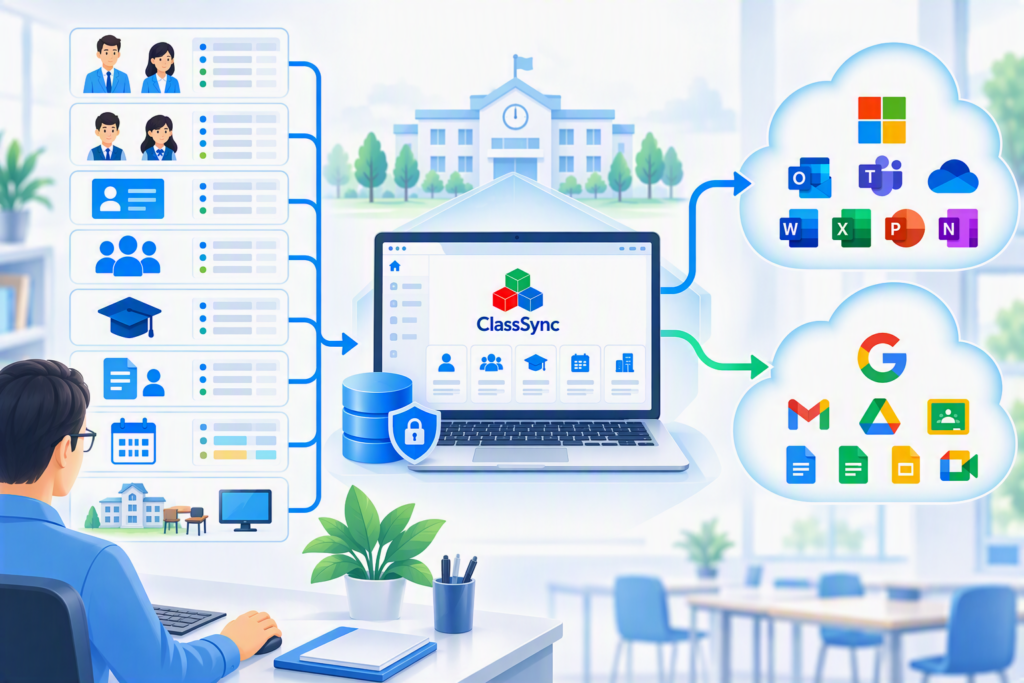
Teacher and student rosters are primarily maintained in the local ClassSync database on the school administrator’s Windows device rather than in a DONGSEO-operated central roster repository.
ClassSync uses a local-first school-data architecture. Teacher and student rosters, OneID mappings, course assignments, enrollment rosters, and other supported school information can be managed locally through the ClassSync application.
Local roster information is not automatically transmitted to external services merely because it exists in the ClassSync database.
When an administrator initiates a supported Microsoft 365 or Google Workspace™ operation, the information required for that operation may be transmitted through the applicable authorized API and processed in the school-managed cloud environment.
This means that ClassSync should not be described as a system in which all data always remains on the local device. Instead, the local ClassSync database serves as the primary management location for teacher and student rosters, while administrator-initiated operations can use the applicable school data with Microsoft 365 or Google Workspace™ services.
ClassSync’s local-first design is intended to avoid introducing an additional DONGSEO-operated central roster repository when supported school administration can be performed using the administrator’s local environment and the cloud services already managed by the school.
For detailed information about ClassSync data processing, authentication, API use, external transfers, retention, and user rights, see the ClassSync App Privacy Policy.
Teacher Roster
The Teacher Roster provides functionality for creating and managing teacher information in the local ClassSync database.
Depending on the school’s configuration and the functions being used, teacher information can include items such as:
- teacher name;
- account or OneID information;
- assigned grade or class;
- subject information; and
- information required for supported school account, group, class, and provisioning operations.
Teacher-roster information can be used for supported Microsoft 365 and Google Workspace™ account-management operations and for creating and managing teacher, grade, class, and other supported school groups.
ClassSync ID Matching can compare teacher-roster entries that do not yet have an assigned OneID with existing Microsoft 365 or Google Workspace user information.
If a corresponding account is identified, the administrator can review the matching information. If multiple users have the same name, ClassSync does not automatically select one account based only on the matching name.
Teacher-roster information is also used together with other locally managed school information when preparing SDS V2.1 CSV data.
Student Roster
The Student Roster provides functionality for creating and managing student information in the local ClassSync database.
Depending on the school’s configuration and selected functions, the roster can include information such as:
- student name;
- student number;
- account or OneID information;
- grade and class; and
- other information required for supported account, group, class, enrollment, or School Data Sync operations.
Student-roster information can be used for supported Microsoft 365 and Google Workspace™ account and group management and as source information when preparing classes and enrollments.
ClassSync ID Matching can also compare student-roster entries without an assigned OneID with existing Microsoft 365 or Google Workspace user information for administrator review.
Microsoft publishes default values and ENUMS supported by SDS v1, SDS v2.1 CSV, and OneRoster API inbound flows, covering areas such as organization types, organization user roles, grade levels, academic sessions, enrollment roles, subjects, and demographic fields.
For Microsoft’s current reference values, see Default List of Values – School Data Sync.
Course Assignments
The Course Assignments functionality manages information used to define classes and instructional assignments.
Course-assignment information can include the teacher, subject, class name, grade, class group, and other information required for the applicable class configuration.
ClassSync uses this information together with teacher and student rosters and enrollment information when generating the applicable SDS V2.1 CSV data.
Course-assignment information can therefore contribute to the class structure used by supported Microsoft Teams and Google Classroom™ provisioning workflows.
Enrollment Rosters
The Enrollment Rosters functionality manages the relationship between configured classes or courses and the students assigned to them.
Administrators can use locally managed student information and course-assignment information to prepare class-level or subject-level enrollment rosters.
Enrollment information is used together with teacher rosters, student rosters, and course assignments when generating SDS V2.1 CSV data.
The resulting enrollment data can be used in supported Microsoft Teams and Google Classroom™ class-synchronization workflows.
SDS V2.1 CSV File Generation
Generated Locally and Saved to a User-Selected Folder
ClassSync can generate CSV files in the Microsoft School Data Sync (SDS) v2.1 format from locally managed school information.
The applicable source information includes:
- Teacher Roster
- Student Roster
- Course Assignments
- Enrollment Rosters
together with other school or academic information required for the selected configuration.
The generated files are saved to a folder selected by the administrator on the local Windows device.
Depending on the configured school data and selected options, the generated SDS V2.1 CSV file set can include:
orgs.csvusers.csvroles.csvclasses.csvenrollments.csvcourses.csvacademicSessions.csvrelationships.csvdemographics.csvuserFlags.csv
Microsoft’s School Data Sync documentation defines default values used with SDS v2.1 CSV for areas including organization types, roles, grades, academic sessions, enrollment roles, subjects, and demographic information.
Generating SDS V2.1 CSV files in ClassSync and uploading them to Microsoft School Data Sync are separate operations.
SDS V2.1 CSV as a Common Class-Provisioning Data Source
The SDS V2.1 CSV data generated by ClassSync is also used as a common school data source for supported class-provisioning workflows.
The supported provisioning paths include:
Microsoft Teams through Microsoft School Data Sync
Locally Managed School Data → SDS V2.1 CSV → Microsoft School Data Sync → Microsoft Teams
The administrator generates the SDS V2.1 CSV files locally and separately uploads the applicable file set to Microsoft School Data Sync.
Microsoft Teams through ClassSync Teams Sync
Locally Managed School Data → SDS V2.1 CSV → ClassSync Teams Sync → Microsoft Teams
The administrator can select the applicable class teams in ClassSync Teams Sync and run the supported synchronization operation.
Google Classroom™
Locally Managed School Data → SDS V2.1 CSV → ClassSync Classroom Sync → Google Classroom™
ClassSync Classroom Sync uses the generated SDS V2.1 CSV data as the school data source for supported Google Classroom class and enrollment synchronization.
Microsoft School Data Sync, ClassSync Teams Sync, and ClassSync Classroom Sync are separate provisioning paths, but they use SDS V2.1 CSV data generated from the same locally managed ClassSync school information.
When School Data Changes
When the locally managed Teacher Roster, Student Roster, Course Assignments, or Enrollment Rosters are updated, the SDS V2.1 CSV files should be regenerated so that they reflect the updated school information.
The applicable synchronization is then run again.
Microsoft School Data Sync
Regenerate the SDS V2.1 CSV files and upload the applicable generated CSV file set to Microsoft School Data Sync.
ClassSync Teams Sync
Regenerate the SDS V2.1 CSV files, select the affected class teams in ClassSync Teams Sync, and run synchronization again.
ClassSync Classroom Sync
Regenerate the SDS V2.1 CSV files, select the affected classes in ClassSync Classroom Sync, and run synchronization again.
What “Local-First” Means in ClassSync
Local-first does not mean that ClassSync never communicates with external cloud services.
Instead, it means that the primary teacher and student roster database is managed locally rather than in a DONGSEO-operated central roster repository.
The general processing model is:
Local ClassSync Data → Administrator-Initiated Operation → School-Managed Microsoft 365 or Google Workspace™ Environment
ClassSync is designed as a Windows application used by an authorized school administrator from the administrator’s local device.
Supported Microsoft 365 and Google Workspace operations can process the information required for the selected administrator-initiated operation.
School administrators remain responsible for appropriately protecting:
- the Windows device;
- the local ClassSync database;
- exported CSV and SDS files;
- backup files;
- cloud accounts;
- administrator permissions; and
- the school’s Microsoft 365 and Google Workspace environments.
A local-first architecture does not eliminate every privacy or security risk and does not, by itself, establish compliance with every privacy or data-protection requirement.